How to Track Android Location from iPhone: 5 Methods That Work

Apple’s Find My only tracks Apple devices. If the phone you need to locate runs Android, it won’t appear in your Find My app — not on your iPhone, not on iCloud. Cross-platform location tracking requires a different approach entirely.

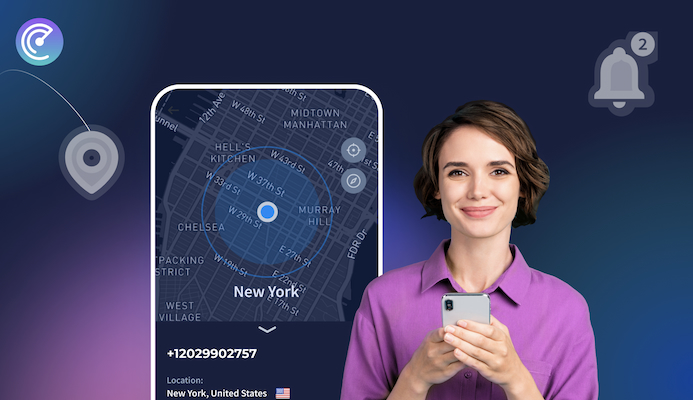
There are five methods that work. Four of them — Google Maps, Google Find My Device, Samsung Find My Mobile, and Life360 — require something to have been set up on the Android in advance: a Google account, a Samsung account, an app, or location sharing enabled. The fifth requires none of that. Scannero tracks any Android by phone number — you enter the number, it sends an SMS with a location link, and when the person holding the phone taps it, their GPS coordinates appear in your dashboard. It’s the only method that works when the Android is already missing and nothing was configured beforehand.

Table Of Contents

Why iPhone Can’t Track Android Natively

Apple’s Find My runs entirely within the Apple ecosystem. It communicates via Bluetooth and Apple’s servers to locate devices tied to an Apple ID — iPhones, iPads, Macs, AirTags, and AirPods. Android devices have no Apple ID and no connection to this network.

Android uses Google’s own system, called Find Hub (previously Find My Device), which works the same way in reverse: it locates Android devices tied to a Google account but has no visibility into iPhones. To track across platforms, you need a tool that operates independently of both ecosystems — either a shared third-party app or a mechanism like Scannero that uses the phone number rather than an account.

Method 1: Track an Android Phone from iPhone by Phone Number

Every other method on this list requires something to have been configured on the Android device before you needed to track it. Scannero is the exception.

When the Android phone is in someone else’s hands — found by a stranger, held by a contact who hasn’t set up location sharing, or lost before Find My Device was ever enabled — you can still get a location using just the phone number. Scannero sends a short SMS to that number. The message contains a location-sharing link. When the recipient taps it, their current GPS coordinates are sent to your Scannero account and displayed on a map in real time.

Here’s how to use it:

  1. Go to scannero.com and create an account — the trial costs around $1.
  2. Enter the Android phone number you want to locate.
  3. Write a brief message to accompany the link. If you’re recovering a lost phone, explain who you are, that the device belongs to you, and that tapping the link will confirm their location so you can collect it.
  4. Optionally include a contact number or reward offer to increase the response rate.
  5. Send the request. When the link is tapped, the location appears on your Scannero dashboard.

Scannero works on any Android device regardless of brand, and the person receiving the SMS doesn’t need to install anything. Because the location step requires the recipient to tap the link, it’s consent-based — which also makes it legally straightforward for recovering your own phone or locating a family member who hasn’t set up any sharing tools.

Method 2: Use Google Maps Location Sharing

how to track a phone number on Google Maps

Google Maps is the most widely used method for real-time cross-platform tracking — it works between Android and iPhone through shared contacts. The Android user must initiate sharing from their device.

On the Android phone:

  1. Open Google Maps and tap the profile picture in the top-right corner.
  2. Select Share real-time location, then tap Create share.
  3. Set the sharing duration: 1 hour, a custom time, or Until you turn it off.
  4. Select the iPhone contact from the list, or tap More to copy a shareable link.

On the iPhone:

  1. Open Google Maps and tap your profile picture.
  2. Tap Share Location — any contacts sharing with you will appear here.
  3. Tap the Android user’s name to see their live location icon on the map, including their battery level.

Limitation: the Android user must actively enable sharing from their end. If the phone is already lost or the person isn’t responsive, this method won’t work.

Method 3: Use Google Find My Device from iPhone Browser

Google’s Find My Device — now called Find Hub — works in any web browser, including Safari on iPhone. No app needs to be installed on the iPhone; the entire process is browser-based.

  1. Open Safari on your iPhone and go to android.com/find.
  2. Sign in with the Google account that is active on the Android phone.
  3. Select the target Android device from the list.
  4. The device’s current location appears on a map. From this screen you can also play a sound to locate it nearby, lock the screen with a message, or remotely erase the device.

This method gives you the same capabilities as using Find My Device on a computer, accessed entirely from your iPhone. If the Android is online and Find My Device is enabled, you’ll see its real-time location. If it’s offline, you’ll see its last known location.

Limitation: Find My Device must have been enabled on the Android before it went missing, and the device must be signed into a Google account that you have access to.

Method 4: Track a Samsung Android from iPhone (Samsung Find My Mobile)

Samsung Galaxy users have a second tracking system built into their devices — Samsung Find My Mobile — that runs on a Samsung account rather than a Google account. It works from any browser on iPhone and includes features not available in Google’s Find My Device.

  1. On the Samsung phone, confirm that Find My Mobile is enabled: Settings > Biometrics and Security > Find My Mobile.
  2. Open Safari on your iPhone and go to findmymobile.samsung.com.
  3. Sign in with the Samsung account linked to the Galaxy device.
  4. Select the device from the list — its real-time location appears on the map.

Beyond location, Samsung Find My Mobile lets you remotely unlock the device, back up data, and — on newer Galaxy models — track the phone even when offline using nearby Samsung devices on the SmartThings network.

Note: this method only works for Samsung Galaxy phones. For other Android brands — Google Pixel, OnePlus, Motorola — use Google Find My Device instead.

Method 5: Use a Cross-Platform App

Two apps offer cross-platform location sharing without requiring a Google or Samsung account on the Android.

Life360 is the best option for families or anyone who needs ongoing location visibility. Both users install Life360 (available on iOS and Android), create accounts, and join a shared Circle. Once set up, each Circle member’s location is visible to the others in real time, with up to 30 days of location history. Life360 also supports geofencing — you can set alerts for when someone arrives at or leaves a specific location like home or school.

WhatsApp is better suited for quick, one-off location shares between existing contacts:

  1. Open a WhatsApp chat with the Android user.
  2. Tap the + icon next to the message field and select Location.
  3. Tap Share Live Location.
  4. Choose a duration: 15 minutes, 1 hour, or 8 hours.
  5. Tap Send. The Android user’s live position appears as a moving marker in the chat.

Both methods require the Android user to participate actively. Life360 requires setup in advance; WhatsApp sharing can be initiated in the moment but only if the other person responds.

Which Method Is Right for Your Situation?

MethodRequires Google Account on AndroidRequires App on AndroidWorks in Real TimeRequires Prior SetupWorks If Android Is Already Lost
Scannero (phone number)NoNoYesNoYes
Google MapsYesYesYesYesNo
Google Find My DeviceYesNo (browser)YesYesNo
Samsung Find My MobileSamsung accountNo (browser)YesYesNo
Life360 / WhatsAppNoYesYesYesNo

Scannero is the only method that requires no prior setup on the Android and no app installed on the target device. If the phone is already lost or the person isn’t actively cooperating, every method except Scannero depends on something that was — or wasn’t — configured beforehand.

Google Maps and WhatsApp are the best options for voluntary, real-time sharing between people who both have their phones. Google Find My Device is the right tool when you have access to the Google account signed into the Android. Samsung Find My Mobile adds extra recovery options specifically for Galaxy devices.

Can You Track an iPhone from an Android?

The reverse situation is equally common — an Android user needing to locate an iPhone. Three methods work:

  1. iCloud.com via browser: open Chrome on the Android, go to icloud.com/find, and sign in with the Apple ID linked to the iPhone. The device’s location appears on a map, with options to play a sound, enable Lost Mode, or erase the device. Requires access to the Apple ID.
  2. Google Maps: if the iPhone has Google Maps installed with location sharing enabled, the Android user can see the iPhone’s live location through the same Google Maps interface described in Method 2 above.
  3. Scannero: works in both directions. Enter the iPhone number, send the SMS link, and get the location when the link is tapped — no Apple ID needed.

For families using mixed devices, Scannero is the most consistent solution because it operates the same way regardless of whether the target phone is Android or iPhone.

Troubleshooting: Why Google Find My Device Shows No Location

If android.com/find shows an error or no location for the device, the cause is usually one of four things:

  1. Find My Device was disabled: the feature must be turned on in Settings > Google > Find My Device before the phone goes missing. It cannot be activated remotely after the fact.
  2. The Android is offline or the battery is dead: Find My Device shows the last known location when the device is offline. If the phone has been off for an extended period, this location may be hours old.
  3. Wrong Google account: make sure you’re signing into android.com/find with the Google account that is actively signed into the Android phone — not a secondary account.
  4. Location permissions set incorrectly: on the Android, go to Settings > Apps > Find My Device > Permissions > Location and confirm it is set to Allow all the time, not Only while using the app.

Frequently Asked Questions

Can an iPhone track an Android location?

Not natively. Apple’s Find My only works within the Apple ecosystem. To track an Android from an iPhone, you need a cross-platform method: Google Maps location sharing, Google Find My Device (browser-based), Samsung Find My Mobile (for Galaxy phones), a shared app like Life360, or Scannero, which works by sending an SMS to the Android’s phone number.

Is there a free way to track an Android from an iPhone?

Yes. Google Maps location sharing is free if the Android user initiates sharing from their device. Google Find My Device is also free and accessible from Safari on iPhone via android.com/find, as long as the Android is signed into a Google account and Find My Device is enabled. Life360 offers a free tier with basic real-time location. Scannero has a trial at around $1, making it the most accessible paid option when free methods are unavailable due to lack of prior setup.

Can I track an Android without them knowing?

Reliable consumer tracking tools — including Google Maps, Find My Device, Life360, and Scannero — all require some form of interaction or prior consent from the device owner. Scannero, for example, sends the person a visible SMS message that they must tap. Methods that claim to track without any awareness or consent from the device owner operate outside legal boundaries in most jurisdictions and should not be used on devices you do not own.

What is the best app to track an Android phone from an iPhone?

For families wanting ongoing location sharing, Life360 is the most feature-complete cross-platform solution. For tracking a specific Android device using only a browser from your iPhone, Google Find My Device requires no app install. For situations where the Android is already lost or the person hasn’t set up any sharing tools, Scannero is the most practical option — it requires nothing on the Android side other than a working phone number that can receive a text message.

Nicklaus Borer
Greetings. I am a journalist and a computer engineer. I am engaged in research in the field of security, data and their publication on this blog.