



Table Of Contents

Does Airplane Mode Turn Off Your Location?
Most people turn on airplane mode expecting their phone to go dark — no calls, no tracking, no visibility. But if you’re trying to hide your location from Find My, Life360, or Snapchat, airplane mode alone does not do what you think it does. Your phone still knows exactly where you are. It just stops telling anyone — until you reconnect.
On the other side of this: if you’re trying to find someone who just switched to airplane mode, their location didn’t vanish. Scannero can send a location request that fires the moment they come back online, giving you their real-time position without needing any app on their device.
Here is the full breakdown of what airplane mode actually does to your location, what it doesn’t, and what your options are on both ends.
The Short Answer: No — But It’s More Complicated Than That
Airplane mode disables cellular data, Wi-Fi, and Bluetooth. That cuts your phone’s connection to the internet and to cell towers. What it does not disable is GPS.
GPS works by receiving signals from satellites orbiting the Earth. Your phone picks those signals up passively — it does not transmit anything back. Because there is no outgoing signal, airplane mode has no mechanism to block it. Your device always knows where it is, even when it can’t talk to anything.
The practical result: airplane mode stops your phone from sharing your location, but it does not stop your phone from tracking it.

What Airplane Mode Actually Turns Off
When you enable airplane mode, the following are disabled automatically:
- Cellular network connection (calls, SMS, mobile data)
- Wi-Fi (disabled by default, but can be manually re-enabled)
- Bluetooth (disabled by default, but can be manually re-enabled)
- Mobile hotspot
- NFC on most devices
One important detail: Wi-Fi and Bluetooth are only off by default. On both iPhone and Android, you can switch airplane mode on and then manually toggle Wi-Fi back on. The moment you do, any location-sharing app that was waiting for a connection resumes updating your position.
Why GPS Keeps Working in Airplane Mode
GPS satellites broadcast signals continuously. Your phone’s GPS chip receives those signals and calculates your position from the timing differences between multiple satellites. The entire process is receive-only — your phone never pings the satellite or announces its presence.
Because GPS requires no outgoing transmission and no internet connection, it operates completely independently of airplane mode. This is why Google Maps and Apple Maps still show your real-time position in airplane mode, as long as you have maps downloaded for offline use. It is also why fitness apps like Strava or Nike Run Club keep recording your route even with all signals disabled — they are logging GPS coordinates locally on the device.
Does Airplane Mode Stop Location Sharing?
Yes — while airplane mode is on and Wi-Fi remains off, location sharing stops. Apps that push your location to others — Find My, Life360, Snap Map, Google Maps sharing, Uber — all require an internet connection to transmit that data. With cellular and Wi-Fi both cut, they cannot send updates.
What others see depends on the app. Most show your last known location — the position your phone reported before it went offline. That location stays frozen on their screen until your phone reconnects and sends a new update.
The key exception: if you turn Wi-Fi back on while airplane mode is still active — for example, to use in-flight internet — location sharing resumes immediately on any app that was previously active.
What Others See When You Turn On Airplane Mode
| App | What others see during airplane mode | Updates resume when |
|---|---|---|
| Find My (iOS) | Last known location, labeled “offline” | Device reconnects to any network |
| Google Find My Device | Last known location with timestamp | Device reconnects to cellular or Wi-Fi |
| Life360 | Last known location; circle members notified of no connection | Airplane mode turned off |
| Snapchat Snap Map | Ghost Mode activates after 8 hours of no update; before that, last location shows | App opened with internet connection |
| Google Maps sharing | Last known location with “location unavailable” note | Device reconnects and app refreshes |
Does Airplane Mode Freeze Your Location?

From a practical standpoint, yes — airplane mode freezes what others can see. The position shown to other people stops updating the moment your phone loses its connection.
But your device is not frozen. Its GPS chip keeps receiving satellite signals and logging your actual position. That data is stored locally on your phone. When you reconnect — whether by turning off airplane mode or manually enabling Wi-Fi — apps can access that stored location data and update to your current position, which may be miles away from where others last saw you.
Does going on airplane mode freeze your location? Only what gets shared. Not what gets recorded.
The Wi-Fi Loophole: When Airplane Mode Doesn’t Hide You
This is the part most guides leave out. Airplane mode sets both Wi-Fi and Bluetooth to off by default, but it does not lock them there. On every iPhone and Android device, you can turn Wi-Fi back on manually while airplane mode remains active.
This is intentional — airlines offer in-flight Wi-Fi, and the system is designed to let you use it without disabling airplane mode. But the consequence is that the moment you connect to any Wi-Fi network, location-sharing apps resume. Can someone see your location on airplane mode with Wi-Fi? Yes, immediately.
If your goal is to stop location sharing, airplane mode alone is not sufficient. You need to keep Wi-Fi off as well — or go a step further and disable location services entirely.
Does Airplane Mode Turn Off Location on iPhone?
On iPhone, airplane mode disables cellular and defaults Wi-Fi and Bluetooth to off. But GPS and location services remain active unless you turn them off separately.
To fully turn off location on iPhone:
- Open Settings
- Tap Privacy & Security
- Tap Location Services
- Toggle Location Services to Off
- Confirm by tapping Turn Off
Note: On iPhone 14 and later, Find My uses Apple’s proprietary offline finding network even when the device appears to be off. Airplane mode does not disable this feature. If you want to stop Find My from updating, you need to disable it specifically under Settings > [Your Name] > Find My > Find My iPhone.
Does Airplane Mode Turn Off Location on Android?
On Android, airplane mode works the same way — cellular off, Wi-Fi and Bluetooth off by default. Location services remain active.
To fully turn off location on Android:
- Open Settings
- Tap Location
- Toggle Use Location to Off
Important: Android includes an Emergency Location Service (ELS) that shares your location with emergency services regardless of your location settings. This cannot be disabled on most devices and is separate from standard GPS tracking. It only activates during genuine 911 calls.
How to Use Scannero When Someone Has Airplane Mode On
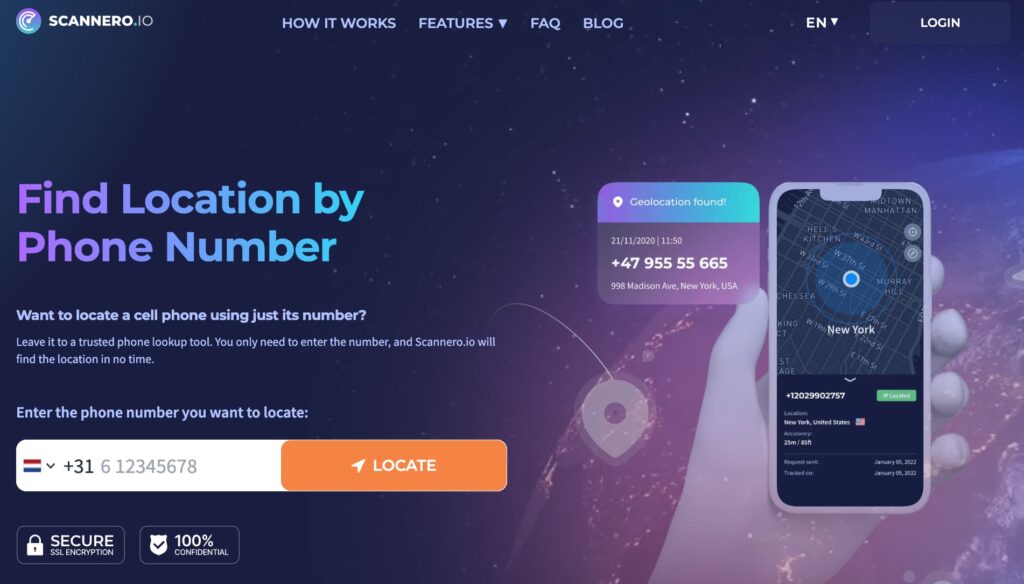
When a person’s phone goes to airplane mode, the last known location displayed in tracking apps quickly becomes outdated. If they travel while offline, the location shown to others could be hours old by the time they reconnect.
Scannero handles this with a queued consent-based location request. When someone needs to find a phone that recently went offline, the process works like this:
- Create an account at scannero.com
- Enter the phone number or switch to “Location by Link”
- Send the location request — either automatically via Scannero or as a link through any messenger
- When the recipient comes back online and taps the request, their current GPS coordinates are returned
- The location appears on a map in your Scannero dashboard, typically within 1–2 minutes of them reconnecting
No app is required on the recipient’s device. The request works across all carriers and phone types, including older handsets.
This is particularly useful for parents tracking a teenager’s flight home, recovering a lost phone that was last seen in airplane mode, or confirming a family member’s arrival after a long journey. The location that comes back reflects where they are when they reconnect — not where they were when their phone went dark.
Scannero vs. Other Location-Sharing Tools
| Feature | Scannero | Find My (iOS) | Life360 | Google Find My Device |
|---|---|---|---|---|
| Works across all carriers | Yes | Apple devices only | Requires app | Android/Google only |
| No app required on target device | Yes | No | No | No |
| Location request sent by phone number | Yes | No | No | No |
| Works when target reconnects after airplane mode | Yes | Partial | Yes | Partial |
| Consent-based / legal | Yes | Yes | Yes | Yes |
| Reverse phone number lookup | Yes | No | No | No |
| Works on non-smartphones / older phones | Yes | No | No | No |
| One-time location check (no subscription for basic use) | Yes | Yes (built-in) | No | Yes (built-in) |
For users trying to find a phone outside of their Apple ecosystem, Android circle, or Life360 family group, Scannero is the only option in this table that works with just a phone number — no prior app installation, no shared account, no platform dependency. You enter the number, the request is sent, and the location returns when the device is back online.
How to Fully Hide Your Location (Beyond Airplane Mode)
If you want to stop all forms of location tracking, airplane mode is not enough. Here is what actually works:
- Turn off Location Services — iOS: Settings > Privacy & Security > Location Services > Off. Android: Settings > Location > toggle Off. This prevents GPS data from being accessed by any app.
- Disable Wi-Fi and Bluetooth manually — Do not rely on airplane mode to keep these off. Go to Settings and toggle them directly.
- Revoke per-app location permissions — Even with location services on, you can restrict individual apps. Review which apps have “Always On” location access and downgrade them to “While Using” or “Never.”
- Use a VPN — Masks your IP address from apps that use IP-based location estimation. Not a substitute for disabling GPS, but adds a layer of privacy.
- Disable significant locations — iOS stores a history of frequently visited places. Turn it off at Settings > Privacy & Security > Location Services > System Services > Significant Locations.
Note: even with all of the above, your mobile carrier logs which cell towers your SIM card connects to. This data is accessible to law enforcement under a court order and cannot be disabled through your phone’s settings.
Frequently Asked Questions
Does airplane mode pause your location?
It pauses what gets shared to others. Your device’s GPS continues to record your position locally. When you reconnect, apps update to your current location — not the location you were at when you turned airplane mode on.
Does airplane mode turn off location on Life360?
No. Life360 stops updating your position during airplane mode and shows your last known location to other circle members. A “no network” notification may be triggered. Location sharing resumes the moment cellular or Wi-Fi reconnects and the Life360 app refreshes. Turning off airplane mode alone does not hide you from Life360.
Does airplane mode stop location tracking entirely?
It stops real-time sharing to apps and services. It does not stop GPS from recording your position on-device. It also does not stop your carrier from logging cell tower connections — though that data requires legal process to access.
Will airplane mode hide my location from Find My on iPhone?
It will stop Find My from updating with new locations. Others will see your last known position. On newer iPhones (14 and later), Find My uses an offline crowdsourced network that may still relay approximate location even with airplane mode on, as long as nearby Apple devices pick up a Bluetooth signal from yours.
The Bottom Line
Airplane mode does not turn off your location. It cuts the connection that transmits your location. That difference matters: your phone is still tracking where you are — it is just not telling anyone while it is offline.
For privacy, airplane mode needs to be paired with manually disabling location services and keeping Wi-Fi off. For anyone trying to locate a phone that recently went to airplane mode, the last known location shown in tracking apps becomes stale fast.
Scannero solves this from both ends. If you need to find someone who has gone offline, enter their phone number and send a location request. The moment their phone reconnects — whether they land, drive back into coverage, or simply turn airplane mode off — their real-time GPS coordinates return to your dashboard. No app needed on their device. No dependency on shared ecosystems. Just a number, a request, and an answer.

Related posts
 May 25, 2026
 May 25, 2026
 May 25, 2026





