


Table Of Contents

How Accurate Is Find My iPhone?
The short answer: Find My iPhone is accurate to roughly 5–10 meters outdoors with a clear sky, 10–50 meters indoors relying on Wi-Fi, and under 1 meter when using Precision Finding with UWB technology — a completely different mode available only on iPhone 11 and later.
But those numbers only tell part of the story. Find My can also show you a location that is hours out of date if the phone lost connectivity. It can place a device 100 meters from its real position if GPS signals are bouncing off buildings. And it can show “No Location Found” — which does not mean the phone is gone, it means Find My can’t reach it right now.
This guide breaks down what the numbers actually mean in real situations, what causes Find My to be wrong, what its accuracy indicators tell you, and when you need a different tool entirely.
Find My iPhone Accuracy: Numbers at a Glance
| Scenario | Technology Used | Typical Accuracy | Reliability |
|---|---|---|---|
| Outdoors, clear sky | GPS (full satellite lock) | 5–10 meters (15–33 feet) | High |
| Dense urban area (city canyon) | GPS with multipath interference | 20–100 meters | Medium — can jump |
| Indoors with dense Wi-Fi | Wi-Fi triangulation | 10–50 meters | Medium — right building, maybe wrong floor |
| Indoors, sparse Wi-Fi | Cellular tower triangulation | 100–500+ meters | Low |
| Rural area, outdoors | GPS | 5–10 meters | High |
| Rural area, indoors/obstructed | Cellular only | Hundreds of meters to miles | Low |
| Phone offline (last known) | Historical snapshot | Varies — could be hours old | No live tracking |
| UWB Precision Finding (iPhone 11+) | Ultra-Wideband + Bluetooth | Under 1 meter (within ~30 feet) | Very high when in range |
| Find My network (Bluetooth, offline) | Crowdsourced from nearby Apple devices | 5–15 meters typically | Medium — depends on nearby devices |
How Find My iPhone Determines Location
Find My uses four technologies in a priority hierarchy. The best available signal takes precedence.
GPS satellites provide the most accurate coordinates outdoors. Your iPhone’s receiver listens for signals from multiple satellites simultaneously and uses the time difference to triangulate position. A clear view of the sky is essential — one tall building between you and a satellite introduces measurable error. Inside concrete structures, GPS becomes unreliable to unusable.
Wi-Fi network triangulation takes over indoors. Apple maintains a continuously updated database of known Wi-Fi router locations worldwide. Your iPhone scans for nearby routers and compares their signal strengths against Apple’s map — even without connecting to them. A Starbucks packed with routers gives Find My far more triangulation points than an empty warehouse.
Cellular tower triangulation is the fallback of last resort. The phone measures signal strength from nearby towers and estimates distance from each. This is imprecise by nature — accuracy often falls to hundreds of meters or worse, especially in rural areas with widely spaced towers.
The Find My network uses Bluetooth. When a device is offline with no internet connection, it broadcasts a Bluetooth signal. Nearby Apple devices — iPhones, iPads, Macs passing by — anonymously detect this signal and relay the device’s location to Apple’s servers. This is how you can sometimes locate an offline device in a crowded area.
One addition most guides skip: iPhone 11 and later models contain the U1 chip, which enables Ultra-Wideband (UWB) technology. This powers Precision Finding — a sub-meter close-proximity locating mode covered in its own section below.
How Accurate Is Find My in 4 Real-World Scenarios

Accuracy in practice shifts based on the environment. Here are four situations with real precision estimates.
Device in a moving vehicle on a highway. With an unobstructed sky, GPS takes full command. Updates arrive in near real time, and location precision holds to 5–15 meters. The dot tracks smoothly as the vehicle moves. This is Find My at its best — you can see which lane the vehicle is in.
Phone left at a café or restaurant. Once indoors, the phone switches to Wi-Fi triangulation. In a city center with dozens of routers visible, accuracy typically falls between 15–30 meters — usually enough to identify the correct building. The dot may waver between the café and the adjacent one, but you’re in the right block.
Phone lost in a shopping mall or multi-story office building. Dense Wi-Fi helps but thick floors and steel reinforcement degrade signal. Accuracy ranges from 10–50 meters — Find My tells you which mall, but not which floor or shop. This is the most frustrating indoor scenario. The large accuracy circle on the map reflects this uncertainty honestly.
Phone left at home when the battery died. The map shows the last location reported before the phone lost power. This could be accurate to 5 meters (if it died with GPS running near a window) or completely wrong (if it died inside and the last Wi-Fi fix was imprecise). The key is the timestamp — a stale reading from six hours ago is a historical record, not a live location.
What Is Precision Finding and How Accurate Is It?
Precision Finding is a different category of location technology — not remote tracking, but close-proximity guidance. It uses Ultra-Wideband (UWB) technology in iPhone 11 and later to measure distance and direction to a nearby device with centimeter-level precision.
When you’re within about 30 feet of a lost iPhone or AirTag, Precision Finding activates in the Find My app. The screen shows directional arrows and a live distance readout that updates many times per second. Accuracy is under 1 meter under normal conditions — often precise enough to locate a phone under a couch cushion or in a jacket pocket in the next room.
Requirements for Precision Finding between two iPhones:
- Both devices must be iPhone 11 or later
- Both must have iOS 14 or later
- Bluetooth must be enabled on both
- Both must be within approximately 30 feet of each other
For AirTags, the same UWB technology applies on supported iPhones. The practical implication: use the Find My map to get you to the right area, then switch to Precision Finding to guide you the final few feet.
Precision Finding does not work as a remote tracker. It only activates at close range.
How to Read Find My iPhone’s Accuracy Indicators
The Find My app provides visual cues that tell you how much to trust the location data. Most people overlook these.
The colored circle around the device icon is the accuracy radius. A small, tight circle means high-confidence location data — GPS has a solid lock. A large, faint circle means the device could be anywhere within that radius — the system is relying on Wi-Fi or cellular alone. The circle size is proportional to uncertainty: if the circle covers three city blocks, the phone is somewhere in those three blocks, not at the center dot.
No circle at all means the app is showing the last known location based on a historical snapshot — not a live fix. The phone has lost connectivity or powered off since that point.
The timestamp tells you when the location was last reported. “Now” or “1 min ago” is live data. “15 mins ago” or a specific clock time is a historical record. A phone stolen at 3 PM and turned off immediately still shows 3 PM location data at 6 PM.
Battery percentage is displayed alongside the device. A 0% reading confirms the phone died at the shown location. A high percentage means the phone should still be broadcasting — if location isn’t updating, check connectivity.
What “No Location Found” Means on Find My
“No Location Found” is one of the most misunderstood messages in Find My. It does not mean the phone is gone, broken, or stolen. It means Find My cannot currently receive location data from the device.
This happens when:
- The phone is powered off or has a dead battery
- Airplane Mode is enabled
- Location Services are disabled on the device
- The device has no internet connection (cellular and Wi-Fi both unavailable)
- The Apple ID is signed out on the target device
“No Location Found” is different from “Location Not Available” — which appears when the person has stopped sharing their location with you, has removed you from sharing permissions, or has paused sharing intentionally.
When you see “No Location Found,” the map shows the last position where the device had connectivity. That timestamp tells you when the signal was last received. Start your search from that location if the situation is urgent — the phone was there when it last checked in.
Can Find My iPhone Be Wrong?
Yes, Find My can show an incorrect location. Three common error types explain most cases.
Stale location from a lost connection. If a phone dies, enters airplane mode, or loses signal, Find My freezes the last known position. A device stolen at 2 PM and carried across the city still shows the theft location. The timestamp reveals this — if it says “2:00 PM” and it’s now 5 PM, you’re looking at a historical record, not a live position.
GPS multipath interference in urban environments. Skyscrapers reflect GPS satellite signals, causing the receiver to calculate an incorrect position based on the bounced signal rather than the direct one. The location dot can appear to “jump” between two addresses when the phone is stationary inside a building — this is the signal bouncing off different surfaces. Accuracy in these conditions can degrade to 50–100 meters, and the reported position may not be where the phone actually is.
Wi-Fi router database mismatch. Apple builds its Wi-Fi positioning database from crowdsourced data. If a router has moved since Apple catalogued it — or if it’s a mobile hotspot in a truck — Find My places the phone at the router’s last registered location rather than its actual position. This is a less common but real cause of wrong locations reported by users in Apple’s own forums.
How Accurate Is Find My Friends vs. Find My iPhone?
Find My Friends and Find My are the same app. Apple merged them in iOS 13. When you track a person through the “People” tab in Find My, the location data uses the identical GPS/Wi-Fi/cellular hierarchy as tracking your own devices — the accuracy numbers are the same.
One practical difference: people’s location sharing updates slightly less frequently than device tracking by default. When someone is moving quickly, there may be a 1–2 minute lag between their actual position and what appears on your screen.
For Find My Friends to show accurate data, the tracked person must have location sharing enabled and active, location services turned on for Find My (set to Always), and an active internet connection. If any of those conditions fail, accuracy drops or disappears — same as device tracking.
Can Find My Friends be inaccurate? Yes, for the same reasons as any Find My tracking: GPS multipath, indoor Wi-Fi limitations, stale timestamps. Additionally, if the person has paused their location intentionally, Find My shows their last known position — which you may not realize is outdated.
What Affects Find My iPhone Accuracy: 6 Key Factors
- GPS signal strength — clear unobstructed sky maximizes accuracy; trees, buildings, and valleys reduce it
- Wi-Fi network density — more visible routers give more triangulation data; sparse areas force reliance on cellular
- Physical environment — indoors, underground, and in urban canyons all degrade GPS and introduce Wi-Fi positioning limits
- Battery level and Low Power Mode — iOS throttles background location updates when battery is critically low or Low Power Mode is active
- Internet connectivity — no data connection means no new location reports regardless of how strong the GPS signal is
- Location Services setting — “Always” allows background location updates; “While Using” stops reporting the moment Find My isn’t actively open on screen
One additional factor competitors miss: the age of Apple’s Wi-Fi router database. Routers that have been moved, replaced, or are mobile (hotspots, RVs, trucks) can cause Find My to place a device at the router’s old registered location — sometimes miles from the actual position.
How to Improve Find My iPhone Accuracy
Apply these settings on the device being tracked:
- Go to Settings → Privacy & Security → Location Services → Find My → set to Always (not While Using)
- In the same Find My location settings, ensure Precise Location is toggled ON
- Keep Wi-Fi enabled even when not connected to a network — the phone uses it for triangulation in the background
- Keep Bluetooth enabled — required for Find My network offline tracking
- Disable Low Power Mode when accurate location tracking matters: Settings → Battery → Low Power Mode → off
- Ensure the device has cellular data or Wi-Fi connectivity — no internet means no location updates regardless of GPS strength
- Keep iOS updated — Apple regularly improves location accuracy and the Find My system in software updates
When Find My iPhone Isn’t Enough: The Phone Number Alternative
Find My has three hard limits. It only works within the Apple ecosystem — tracking an Android phone through Find My is impossible. It requires the other person to share their Apple ID location with you — no share, no visibility. And if the person has turned off location sharing, Find My goes blank without explanation.
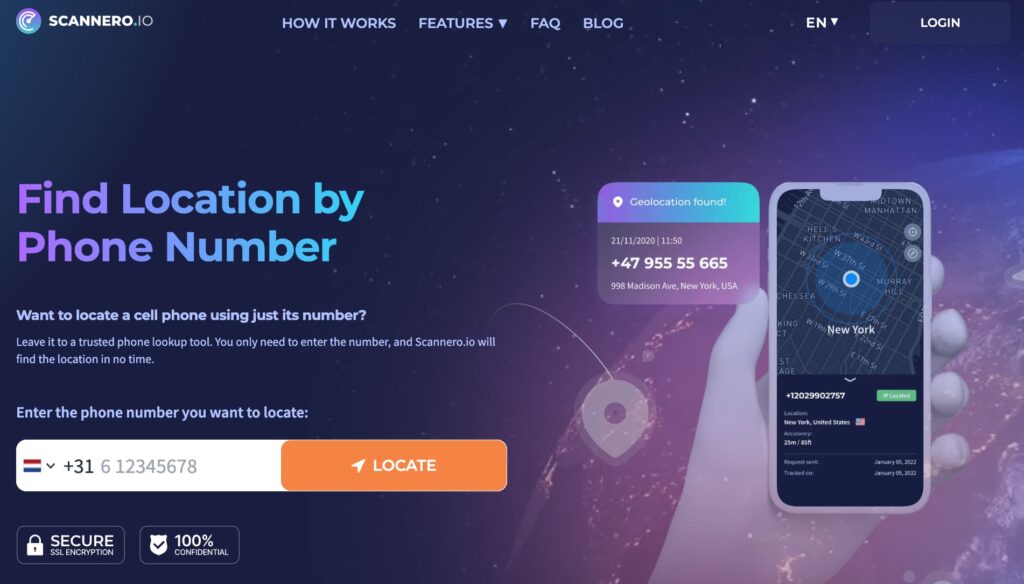
When Find My hits any of these walls, Scannero provides a direct alternative. Instead of depending on a shared app or Apple account, Scannero sends a location request directly to a phone number via SMS. When the recipient taps the link in the message, their GPS coordinates appear on your map in about 2 minutes. No app installation needed on their device, and it works on any phone — iPhone or Android.
Here’s how to use it:
- Go to scannero.com and create an account
- Enter the phone number of the person or device you want to locate
- Scannero sends a discreet SMS with a location request link
- When they tap the link, their real-time GPS location appears on your dashboard
This is particularly useful for families where not everyone uses an iPhone, for parents tracking a child whose device isn’t in the Find My circle, or for anyone who needs a one-time location check without setting up persistent sharing through Apple’s ecosystem.
Find My iPhone vs. Scannero: Key Differences
| Feature / Criteria | Find My iPhone | Scannero |
|---|---|---|
| Works on Android devices | No | Yes |
| Requires Apple ID | Yes | No |
| Requires shared location permission | Yes | No (consent via link tap) |
| Accuracy outdoors | 5–10 meters | GPS-level (via phone) |
| Accuracy indoors | 10–50 meters | GPS-level when phone has signal |
| Works when phone is dead/offline | Shows last known | No (phone must receive SMS) |
| No app needed on target device | No (requires iOS) | Yes |
| Works by phone number alone | No | Yes |
| Precision Finding (nearby) | Yes (iPhone 11+) | No |
Find My is the right tool for tracking devices and people within your Apple ecosystem when location sharing is active. Scannero is the right tool when that ecosystem boundary is the problem — different devices, no shared account, or sharing that’s been turned off.
Final Thoughts
Find My iPhone delivers 5–10 meters of accuracy outdoors under a clear sky, degrades to 10–50 meters indoors depending on Wi-Fi density, and reaches under 1 meter with UWB Precision Finding when you’re within close range of a supported device. The accuracy circle on the map tells you which confidence tier you’re in — ignore it and you may be searching the wrong building.
“No Location Found” means Find My lost contact with the device — check the timestamp, note the last known position, and start from there. When Find My shows a wrong location, GPS multipath interference or a stale connection are the most likely causes.
For situations outside the Apple ecosystem — Android devices, non-shared contacts, or intentionally disabled location sharing — Scannero delivers a GPS fix via phone number in about 2 minutes, no Apple account or shared app required.

Related posts
 May 25, 2026
 May 25, 2026
 May 25, 2026





