


Table Of Contents

How to Locate a Samsung Phone
Losing a Samsung phone is a race against time. If the battery dies or someone powers it off, your window to find it narrows fast. Samsung’s built-in tools cover most scenarios — but they only work if you set them up before the phone went missing. If you didn’t, you still have options.
This guide covers four methods to locate a Samsung phone, ordered from most reliable when pre-configured to the one method that works even when nothing was set up in advance. If your Samsung account is inaccessible right now and SmartThings Find was never enabled, skip to Method 4 — Scannero locates any Samsung phone by number alone, with no prior setup required on the device.
Before You Begin: What You Need for Each Method
Before trying anything, check which method applies to your situation.
| Method | What you need pre-configured | Works if phone is off? |
|---|---|---|
| SmartThings Find | Samsung account + Find My Mobile enabled | No (shows last known location only) |
| Google Find My Device | Google account signed in on device | No (shows last known location only) |
| Google Maps Timeline | Google account + Location History enabled | Yes — shows historical path |
| Scannero (by phone number) | Nothing — just the phone number | No, but queues location for when it reconnects |
Locate a Samsung Phone by Phone Number with Scannero
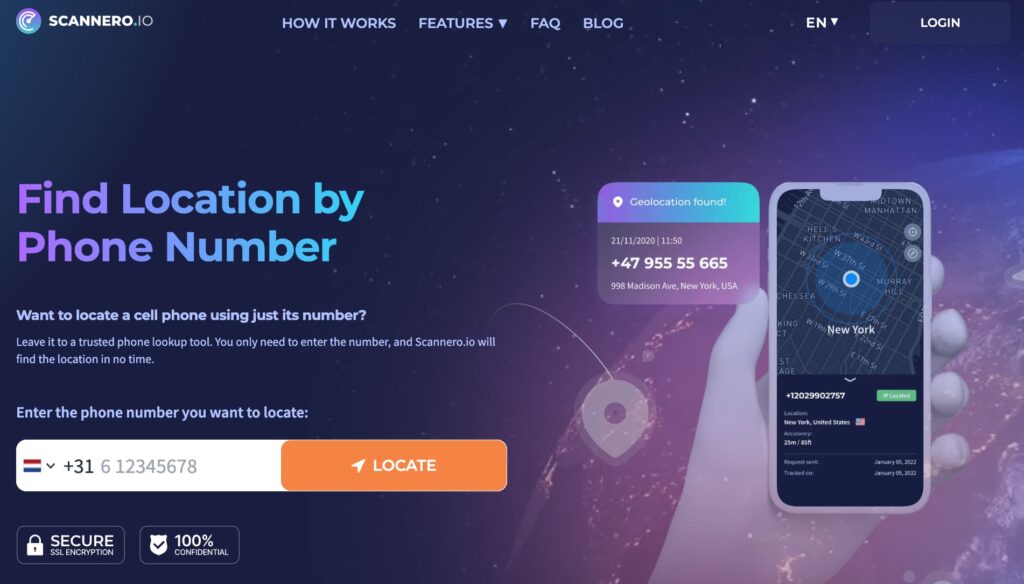
This is the method for situations where the other three do not apply: SmartThings Find was never set up, Samsung account access is blocked, Google Find My Device returns nothing, and the phone is in an unknown location.
Scannero works differently from the built-in tools. Instead of requiring prior enrollment on the device, it locates a Samsung phone using only its phone number — no account, no app, no prior setup on the Samsung device itself. This makes it the only method on this list that works when you find yourself locked out of every other option.
Here is how to track a Samsung phone using Scannero:
- Go to scannero.com and create an account
- Select Location by Number — enter the Samsung phone number — or choose Location by Link to generate a shareable tracking link
- Scannero sends a location request to that number via SMS
- When the recipient — or whoever has the phone — taps the link, their current GPS coordinates are returned
- The location appears on your Scannero dashboard map, typically within 1–2 minutes of the link being tapped
Finding a lost Samsung phone with Scannero does not require the lost device to have Find My Mobile enabled. It does not require access to the Samsung or Google account. And it does not require any app to be installed on the Samsung phone.
This covers three scenarios no other method handles:
- The phone was lost and Find My Mobile was never enabled. Scannero bypasses that requirement entirely. If you need to find your Samsung phone lost by number, this is the path.
- You are on an iPhone and cannot access Samsung account credentials. Scannero runs from any browser — there is no platform dependency.
- The phone is with a stranger who found it. The location request goes to that number. If the person responds, you have their location.
Once the phone is located, Scannero’s reverse phone lookup can also identify who the number belongs to — useful if you want to reach out before involving police.
Samsung SmartThings Find (Samsung’s Built-In Tracker)

SmartThings Find — formerly called Find My Mobile — is Samsung’s native device location service. It is built into every Galaxy phone and is the fastest and most feature-rich option when it has been enabled in advance.
How to Enable SmartThings Find Before You Lose Your Phone
If you are reading this while your phone is still in your hand, do this now.
- Open Settings on your Samsung Galaxy phone
- Tap Security and privacy
- Tap Find My Mobile (also labeled “Lost device protection” on newer One UI versions)
- Toggle on Allow this phone to be found
- Also enable: Remote unlock, Send last location, and Offline finding
The Send last location feature automatically reports your phone’s location to Samsung servers when its battery drops to 20% — useful if it goes dead before you can track it. Offline finding is covered in the next section.
2FA warning: If two-factor authentication is active on your Samsung account and your only enrolled device is the phone you just lost, Samsung will send the authentication code to that phone — and you will be locked out. Set up backup codes now: Settings > Samsung account > Security and privacy > Two-step verification > Backup codes. Save these offline.
How to Locate Your Phone Using SmartThings Find
- From any browser — on a computer, tablet, or another phone — go to smartthingsfind.samsung.com
- Sign in with your Samsung account credentials
- Select your lost phone from the device list on the left panel
- Your phone’s location appears on the map
- Select Track location to receive an updated position every 15 minutes (updates are stored for 7 days)
Remote Actions You Can Take from SmartThings Find
Once you have located the device, several remote actions are available:
- Ring — Forces the phone to ring at maximum volume for 1 minute, even if it is set to silent or vibrate
- Lock — Displays a contact message on the lock screen, disables Samsung Pay, Samsung Pass, and Samsung Digital Keys, and prevents the phone from being powered off
- Track location — Sends a location update every 15 minutes; tracking history stored for 7 days
- Extend battery — Enables Maximum power saving mode remotely, which closes background apps to conserve charge
- Back up — Saves call log, messages, contacts, calendar, and home screen data to Samsung Cloud
- Retrieve calls/messages — Shows the last 50 calls and messages received on the device
- Erase data — Performs a remote factory reset; use this only as a last resort, as it permanently removes access to SmartThings Find
What If SmartThings Find Can’t Locate Your Phone?
If your Samsung phone is off Wi-Fi and cellular, Offline finding kicks in. The feature uses Bluetooth Low Energy (BLE) signals from nearby Galaxy devices — other Samsung phones, tablets, and watches that have opted into the network. When one of those devices passes within Bluetooth range of your lost phone, it silently relays the location back to you.
This system works well in areas with a high density of Samsung devices — urban centers, shopping malls, transit stations. In rural areas with few nearby Galaxy owners, it may not return a result. Offline finding must be enabled in advance; it cannot be turned on remotely after the phone is lost.

Google Find My Device (Works on Any Android)

Every Samsung Galaxy phone runs Android, which means Google Find My Device runs in parallel with SmartThings Find. This is useful if your Samsung account login fails — for instance, due to a 2FA lockout — or if SmartThings Find was never enabled.
Google Find My Device requires the same preconditions: the device must have been signed into a Google account, location services must have been enabled, and the phone must be connected to the internet.
- From any browser, go to google.com/android/find
- Sign in with the Google account linked to the Samsung phone
- Select the device from the list
- Its location appears on the map
Available actions from Google Find My Device:
- Play sound — Rings the phone for 5 minutes, even on silent
- Secure device — Locks the device and displays a recovery message and phone number on the lock screen
- Erase device — Performs a factory reset; like SmartThings Find, this removes access to Find My Device afterward
To find your Samsung phone from an iPhone, use Google Find My Device or SmartThings Find in any mobile browser — both work on iOS. Neither requires a Samsung-specific app. Go to smartthingsfind.samsung.com or google.com/android/find, sign in, and locate the device the same way as on a desktop. How to track a Samsung phone from an iPhone is not a separate process — it is the same web portal, different device.
Google Maps Location History

If the phone was somewhere specific before it disappeared and is now powered off, Google Maps Timeline shows where it was before going dark.
- Open Google Maps in a browser and sign into the linked Google account
- Tap the three-line menu and select Your Timeline
- Select the date you last had the phone
- Review the location history for that day to retrace its path
Important note: Google has transitioned Timeline data to on-device storage. If location history had not been backed up or the phone was new, the Timeline may not show historical data. This method is most useful when you have a rough idea of where the phone was last active and need to narrow it down.
Comparison: SmartThings Find vs. Google Find My Device vs. Scannero
| Feature | SmartThings Find | Google Find My Device | Scannero |
|---|---|---|---|
| Requires prior setup on device | Yes | Yes | No |
| Requires Samsung/Google account login | Yes | Yes | No |
| Works from iPhone or non-Android browser | Yes | Yes | Yes |
| Real-time location tracking | Yes (15-min updates) | Yes | Yes (on link tap) |
| Works when phone is offline | Partial (BLE mesh) | No | Queues until reconnect |
| Remote ring / lock / erase | Yes | Yes | No |
| Works without prior app install on target | Yes (built-in) | Yes (built-in) | Yes |
| Works on any phone number worldwide | No | No | Yes |
| Reverse phone lookup | No | No | Yes |
For users who set up SmartThings Find before losing their phone, Method 1 remains the fastest route. But if Samsung account access is unavailable, or if the Samsung was never enrolled in Find My Mobile — which is a common reality for phones that have never been lost before — Scannero is the only option in this comparison that does not require prior configuration.
What to Do If Your Samsung Phone Was Stolen
If the location shows the phone is somewhere it should not be — and theft is likely — follow these steps in order:
- Do not go directly to the location. Confronting a thief is dangerous. Use the location to inform police, not to retrieve it yourself.
- File a police report. Provide the IMEI number (found on the original box, receipt, or on your Samsung account under devices) and the device’s last known location from SmartThings Find.
- Lock the device remotely via SmartThings Find immediately — this displays your contact info on the lock screen and disables Samsung Pay and Samsung Pass.
- Contact your carrier. Report the theft and request that the number be suspended. Ask whether they can assist with IMEI blacklisting.
- Remotely erase the device if recovery looks unlikely. This triggers a factory reset and removes your personal data. Note: you lose SmartThings Find access after this step.
- Change passwords for all linked accounts — Samsung account, Google account, email, banking apps, and any password manager stored on the device.
- Notify your bank. If Samsung Pay, Google Pay, or any payment app was installed, contact your financial institutions to flag potential unauthorized activity.
How to Prevent Losing Access to Your Samsung Phone’s Location
These steps take less than five minutes and make every method on this list more reliable.
- Enable Find My Mobile now. Settings > Security and privacy > Find My Mobile > toggle on
- Enable Offline finding and Send last location in the same menu — both default to off on some devices
- Set up 2FA backup codes for your Samsung account to avoid lockout during a crisis
- Sign into a Google account on the device to activate Google Find My Device as a parallel backup
- Note your phone’s IMEI number — dial *#06# to display it — and store it somewhere accessible outside your phone
- Keep your battery charged above 20% — the Send last location feature transmits a final position when battery hits this threshold
Frequently Asked Questions
Can I find my Samsung phone if it is turned off?
SmartThings Find and Google Find My Device will show the last known location recorded before the phone powered off. They cannot provide real-time tracking when the device is off. If Offline finding was enabled, nearby Samsung devices can still relay a position while the phone has power — but once it is fully off, no real-time data is available. Scannero queues a location request and returns the position as soon as the phone powers back on and the person taps the request.
Does Samsung have a Find My Phone feature?
Yes. Samsung’s location tracking feature is called SmartThings Find, previously known as Find My Mobile. It is built into every Galaxy phone and accessible at smartthingsfind.samsung.com. It must be enabled before the phone is lost to function.
How do I find my Samsung phone from an iPhone?
Both SmartThings Find and Google Find My Device are browser-based — they work on any device, including iPhone. Open Safari or any browser, go to smartthingsfind.samsung.com or google.com/android/find, sign into the linked account, and locate the device. Scannero also works from iPhone via browser, with no account login to the Samsung device required.
Can I locate a Samsung phone without prior setup?
The built-in tools — SmartThings Find and Google Find My Device — both require prior enrollment. If neither was configured, Scannero can locate the phone using only the phone number, with no prior setup on the Samsung device required.
Summary: Which Method Should You Use?
If SmartThings Find is enabled and your Samsung account is accessible, start there — it offers the most remote control features and the fastest location update cycle. If Samsung account login fails, try Google Find My Device with your Google account. If the phone has been off and you need to reconstruct where it was, check Google Maps Timeline. And if none of the above applies — no prior setup, no account access, or you are trying to locate the phone from an iPhone without Samsung credentials — Scannero locates any Samsung phone by number, no configuration required on the missing device, with the location appearing on your map the moment someone on the other end taps the request.

Related posts
 May 25, 2026
 May 25, 2026
 May 25, 2026





