


Table Of Contents

How to Pause Life360 Without Anyone Knowing: 7 Methods That Work
Life360’s built-in pause button doesn’t work the way most people assume. The moment you tap “pause location sharing” inside the app, every member of your circle sees a notification that your location is paused. That label sits on your pin until you turn sharing back on.
There are other methods that stop or redirect your location without changing your visible status in the same way. This guide covers all 7, rates each one by detection risk, and shows exactly what appears on your circle members’ screens when you use each approach.
If you’re on the other side of this — a parent or partner whose family member has paused Life360 — there’s a section at the end on how to still verify someone’s location when the app goes dark.
What Happens When You Pause Life360 the Normal Way

Before getting into workarounds, it helps to understand what each action shows to other members. Life360 displays status labels on your location pin. Those labels change based on what you do:
- Pausing location sharing in-app → shows “Location sharing paused”
- Turning off GPS entirely → shows “Location permissions off”
- Disabling precise location → shows “Precise location off”
- No network connection (airplane mode or data cut-off) → shows “No network” after a delay, or keeps last known location frozen
- App offloaded or force-stopped → shows last known location with no live update
The goal of most workarounds is either to avoid those status labels entirely or to show a less suspicious label while keeping your actual movement private.
Disable Precise Location (Low Detection Risk)
Instead of turning location off completely, you disable precise GPS while leaving approximate location on. Life360 shows your rough area — typically within half a mile — but can’t pin your exact position. The status shown to others is “Precise location off,” which is far less conspicuous than “Location sharing paused.”
On iPhone:
- Open Settings
- Tap Privacy & Security → Location Services
- Find Life360 in the list
- Toggle off Precise Location (keep the main permission set to “While Using” or “Always”)
On Android:
- Open Settings → Apps → Life360
- Tap Permissions → Location
- Switch from “Precise” to “Approximate”
Detection risk: Low. The label is neutral and the app keeps functioning visually for other members.
Enable Low Data Mode or Data Saver
Cutting Life360’s network access at the data level freezes your location pin at the last known point. The app can’t send updates, so your position appears static. This is one of the methods with no immediate status change — the “No network” label typically only appears after an extended period of no updates.
On iPhone (per Wi-Fi network):
- Open Settings → Wi-Fi
- Tap the (i) icon next to your current network
- Toggle on Low Data Mode
On iPhone (cellular):
- Open Settings → Cellular → Cellular Data Options
- Toggle on Low Data Mode
On Android:
- Open Settings → Network & Internet
- Tap Data Saver and toggle it on
You can also revoke network access for Life360 specifically: Settings → Cellular → scroll to Life360 → toggle off Cellular Data.
Detection risk: Medium. Works well for short periods. After several hours without an update, some circle members may notice the frozen pin.
Offload or Force-Stop the App
Offloading removes the app from your iPhone while preserving its data. Life360 stops running, stops updating, and your location freezes at the last point. No “paused” notification is sent. The pin just stops moving.
On iPhone (offload):
- Open Settings → General → iPhone Storage
- Scroll to Life360
- Tap Offload App → confirm
On Android (force stop):
- Open Settings → Apps → Life360
- Tap Force Stop → confirm
One question comes up often in searches: does offloading Life360 pause your location? Yes — offloading stops the app from updating your position, but it doesn’t trigger the “Location sharing paused” label. Your pin freezes silently.
The limitation: if Life360 is set to background refresh on iOS, reinstalling the app (it reinstalls automatically when you tap it) resumes tracking immediately.
Detection risk: Low-to-medium. Pin stops updating without a status change. Sustained inactivity may prompt questions from attentive circle members.
Activate Airplane Mode
This is the only method that freezes your location with zero status change in Life360. Airplane mode cuts GPS, Wi-Fi, and cellular simultaneously. Life360 can’t update your location, and because there’s no network, the app doesn’t send any status update to the server either. Your pin freezes at the last known point.
- Swipe down from the top right of your screen (iPhone) or pull down the notification shade (Android)
- Tap the airplane icon to enable Airplane Mode
The trade-off is significant: you lose phone calls, texts, and data for as long as Airplane Mode is on. Most people use this method for short windows — a meeting, a commute segment, an hour of privacy — rather than extended periods.
Detection risk: Lowest of all methods. No status label changes. However, being unreachable by phone for extended periods may itself raise questions.
Revoke Life360’s Location Permission
This method fully removes Life360’s access to your device location. It shows “Location permissions off” on your pin — which is more visible than the precise-location method but still less alarming than the explicit pause label. It also completely stops all location data from being sent.
On iPhone:
- Open Settings → Privacy & Security → Location Services
- Tap Life360
- Set to Never
On Android:
- Open Settings → Apps → Life360
- Tap Permissions → Location
- Select Deny or Ask Every Time
The difference between “Never” and “Ask Every Time” matters: “Ask Every Time” prompts Life360 to request permission each time you open it, which may cause the status to fluctuate. “Never” is stable.
Detection risk: Medium-high. The “Location permissions off” label is visible to circle members and is a common signal that someone has intentionally blocked tracking.
Use a GPS Spoofing App (Most Undetectable)
GPS spoofing — sometimes called Life360 ghost mode — works by feeding your device a fake location that appears real to all apps, including Life360. Instead of pausing, your pin stays active and shows a fixed location of your choice. To other circle members, you appear to be standing still at a specific address.
On Android, this uses developer mode:
- Enable Developer Options: Settings → About Phone → tap Build Number 7 times
- Install a mock location app (Fake GPS Location or similar)
- In Developer Options, tap Select Mock Location App and choose the GPS app
- Open the GPS app, drop a pin at your chosen location, and activate spoofing
- Open Life360 — it will now show the fake coordinates
On iPhone, GPS spoofing requires a desktop tool (such as a location changer software connected via USB) since iOS doesn’t support developer mock location natively.
This method requires the most setup but has the lowest detection risk among all 7 options. Your Life360 status stays active, your pin appears to be at a normal location, and no notifications are sent.
Detection risk: Lowest (when set up correctly). Poorly configured spoofers can cause “rubber-banding” — your location jumping between real and fake — which is visible to others. Test before relying on it.
Leave the Circle Entirely
Leaving a Life360 circle is a permanent action that sends a notification to all circle members. There is no way to do it silently through normal app functions. If an Admin removes you, the notification still goes to everyone.
To leave a circle:
- Open Life360 → tap Settings (bottom right)
- Tap the Circle Switcher at the top → choose the circle
- Tap Circle Management → Leave Circle
Deleting your Life360 account has the same effect — your location disappears from all circles, and members are notified. Does deleting Life360 pause your location? Technically yes, but it also triggers removal notifications, making it the highest-visibility option on this list.
This approach makes sense if you’re not concerned about the notification or if you’ve decided to exit the circle permanently. It’s not a stealth move.
Detection risk: Highest. Immediate notification to all circle members.
What Each Method Shows to Other Circle Members
| Method | Status Shown to Circle | Detection Risk |
|---|---|---|
| In-app pause (standard toggle) | “Location sharing paused” | Very High |
| Disable Precise Location | “Precise location off” | Low |
| Low Data Mode / Data Saver | Last known location (frozen) | Medium |
| Offload / Force-Stop app | Last known location (frozen) | Low–Medium |
| Airplane Mode | Last known location (no status change) | Lowest |
| Revoke location permission | “Location permissions off” | Medium–High |
| GPS Spoofing | Active pin at fake location (no change) | Lowest |
| Leave the Circle / Delete account | Removed from circle (notification sent) | Highest |
Airplane mode and GPS spoofing are the two methods that create no visible status change. All other methods change your label in some way.
Why Parents and Partners Use Scannero When Life360 Goes Dark
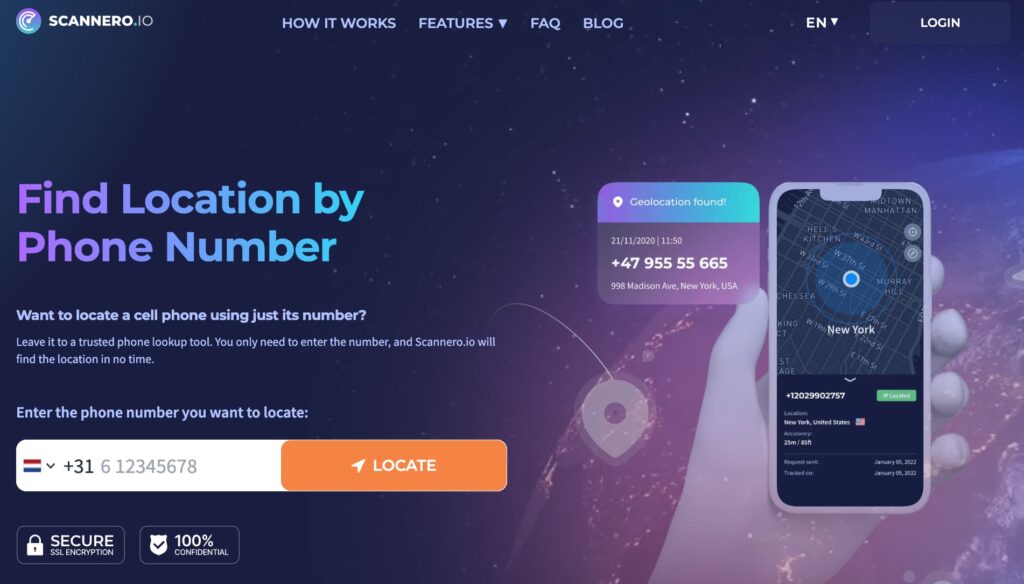
When a family member pauses Life360 — or disables location permissions entirely — the monitoring side of the equation has no fallback. The app shows a frozen pin or a status label, but not an actual location.
This is exactly the scenario Scannero is built for. Instead of relying on a shared tracking app that the other person can pause, Scannero sends a location request directly to someone’s phone number. When the recipient taps the link in the message, their GPS coordinates appear on a map in your Scannero dashboard within about 2 minutes. There’s no app to install on their device — it works through a standard browser link.
Here’s how to get started:
- Create a Scannero account at scannero.com
- Enter the phone number of the person you want to locate
- Scannero sends a discreet SMS with a location request link
- When the recipient taps the link, their real-time GPS location appears on your map
Scannero works independently of Life360. It doesn’t matter whether the person has Life360 installed, paused, or deleted — the location request goes directly to their phone number. It also works on basic phones without a data plan, because the request is delivered by SMS and the response is processed through the link, not an app.
For parents of teenagers who frequently pause Life360, Scannero provides a direct fallback that doesn’t depend on the teen’s app settings. For partners coordinating safety during travel, it’s a one-time check that takes under 3 minutes from start to result.
Scannero vs. Life360 vs. GPS Spoofing Apps
| Feature / Criteria | Scannero | Life360 | GPS Spoofing Apps |
|---|---|---|---|
| Requires app install on target device | No | Yes | Yes (Android); Desktop tool for iOS |
| Works when Life360 is paused | Yes | No | N/A |
| Tracks by phone number alone | Yes | No | No |
| Recipient consent required | Yes (link tap) | Yes (account setup) | No (self-use only) |
| Works without data plan on target device | Yes (SMS-based) | No | No |
| Gives real GPS location (not spoofed) | Yes | Yes | No (shows fake location) |
| Setup time | Under 2 minutes | Account + app install | 10–30 minutes (Android) |
Scannero is the right tool when you need to verify someone’s actual location and can’t rely on a shared app they control. It’s suited for parents who want a backup to Life360, for anyone tracking a device after Life360 has been disabled, and for one-time location checks that don’t require installing monitoring software on another person’s phone.
Final Thoughts
The safest way to pause Life360 without detection is either Airplane Mode — which causes zero status change — or GPS spoofing, which keeps your pin active at a fixed fake address. Methods that cut location permissions or trigger the in-app pause toggle always leave a visible label for other circle members.
For anyone managing the other side of this equation — wondering why a family member’s pin has gone static or why their status reads “Location sharing paused” — Scannero offers a practical way to get a location check that doesn’t depend on the other person’s app settings. Enter their number, send the request, and you’ll have their GPS coordinates within minutes regardless of what their Life360 shows.

Related posts
 May 25, 2026
 May 25, 2026
 May 25, 2026





