


Table Of Contents

How to Share AirTag Location With Family Members: Complete Guide
Before iOS 17, every AirTag was a one-person tool — only the Apple ID it was paired with could track it. That changed in September 2023 when Apple added sharing to Find My, letting up to five additional people track the same AirTag from their own iPhones.
The process is straightforward, but there are real gotchas. Sharing requires iOS 17 or later on both devices, two-factor authentication, and iCloud Keychain turned on. Most importantly: it does not work with child accounts. If you bought an AirTag to put in your kid’s school bag and your child is under 13 with an Apple-managed account, you cannot share that tag with your spouse — the invitation will sit on “Pending” forever.
This guide covers the full setup for iPhone, iPad, and Mac, explains what borrowers can and can’t do, and addresses the most common reasons sharing fails — including the child account block.
What You Need Before You Can Share an AirTag
Before sending any invitation, confirm both the owner’s and recipient’s devices meet all five of these requirements:
- iOS 17, iPadOS 17, or macOS 14 Sonoma or later installed on both devices
- Both users signed into an Apple ID and using iCloud
- Two-factor authentication enabled on both Apple accounts
- iCloud Keychain turned on (Settings → your name → iCloud → scroll to Keychain → toggle on)
- Neither account is a child account — Apple IDs managed via Screen Time, or any account with a birthdate under 13 in the US, cannot send or receive AirTag sharing invitations
The child account limitation is the most commonly missed requirement. Apple’s support documentation confirms it, but most guides don’t mention it prominently. If the person you’re trying to share with has a child Apple ID — even a teenager whose account is still Screen Time-managed — the invitation will appear as “Pending” on your end and never arrive on theirs.
How to Share an AirTag on iPhone or iPad
- Open the Find My app on your iPhone or iPad
- Tap the Items tab at the bottom of the screen
- Tap the name of the AirTag you want to share
- Scroll down and tap Add Person under the “Share This AirTag” section
- Enter the Apple ID (email address) of the person you want to invite, or start typing their name to find them from your contacts
- Tap their name to confirm, then tap Share in the top-right corner
The invitation is now sent. You’ll see the person’s name appear under “Share This AirTag” with a status of “Pending” until they accept. You can add up to five borrowers total through this same process — tap the + icon to add more people before tapping Share.
How the Recipient Accepts the Invitation
The person you invited receives a notification on their iPhone. Here’s what they do to accept:
- Tap the notification, or open the Find My app manually
- Go to the Items tab
- The invitation appears at the top of the list — tap it
- Tap Add to accept
Once accepted, the AirTag appears in their Items list under your name — for example, “[Your name]’s Items.” From that moment, they can see the AirTag’s location on a map, play a sound to find it if it’s nearby, and use Precision Finding on supported iPhone models. They also stop receiving “unknown AirTag” tracking alerts for that specific tag, which eliminates a common nuisance for family members who carry shared items.
How to Share an AirTag on Mac
The Mac flow uses the same Find My app available on macOS 14 or later:
- Open the Find My app on your Mac
- Click the Items tab in the left sidebar
- Click the AirTag you want to share
- In the detail panel, click Add People under “Share This AirTag”
- In the Invite field, type the person’s name, email, or phone number — Find My suggests contacts from your address book as you type
- Select the contact, then click Share in the upper-right corner
The invitation behaves identically to the iPhone flow. The recipient receives a notification and accepts through their own Find My app on iPhone, iPad, or Mac. The same 5-borrower limit and child account restrictions apply.
What Borrowers Can and Cannot Do
When you share an AirTag, borrowers get location visibility — not ownership. The two are meaningfully different.
| Borrowers CAN | Borrowers CANNOT |
|---|---|
| View the AirTag’s location in Find My | Enable or disable Lost Mode |
| Play a sound to locate it when nearby | Rename the AirTag |
| Use Precision Finding (supported iPhones) | Remove the AirTag from the owner’s account |
| See location history | Add other borrowers |
| Get directions to the AirTag’s location | Transfer ownership |
Only the owner can control Lost Mode, rename the tag, manage the borrower list, and remove the AirTag entirely. For most family use cases — tracking car keys, a shared bag, or a pet’s collar — borrower-level access is sufficient. If two people need full control, the practical solution is two AirTags on the same item, each paired to a different Apple ID.
How Many People Can Share One AirTag?
One AirTag supports one owner plus up to five borrowers — six people total. For most households, this covers two parents, a partner, and a few adult family members without any issue.
Can multiple people connect to the same AirTag at once? Yes — all borrowers see the same location data updated in near real-time through the Find My network. In testing documented by third-party reviewers, location updates appeared across three family members’ devices within 5 seconds of each other.
Can you share AirTag location with Android? No. AirTag sharing requires an Apple ID, Find My, and iOS 17 or later. Android users cannot be added as borrowers and cannot track an AirTag’s location through any official Apple channel. Android phones can detect a nearby unknown AirTag using Google’s “Unknown Tracker Alerts” feature (built into Android 6.0 and later), but that’s a safety feature — it doesn’t let them see the tag’s location or track it deliberately. If a family member is on Android, AirTag sharing is not an option for them. Scannero or another cross-platform location tool would be needed instead.
Why AirTag Sharing Doesn’t Work With Child Accounts
This is the issue that causes the most frustration for families — and the one most guides skip entirely.
Apple child accounts are Apple IDs where the account holder’s age is set to under 13, or where the account is managed by a parent through Screen Time. These accounts cannot send or accept AirTag sharing invitations. The “Share This AirTag” option may not appear at all on the child’s device, and invitations sent to a child account will remain stuck on “Pending” on the owner’s side without ever appearing on the child’s.
This blocks the most intuitive family use case: putting an AirTag in a child’s bag so both parents can see where it is. The child doesn’t need tracking access — but the second parent does, and they can be added without issue as long as their own Apple ID is an adult account. The limitation only applies when the child account itself is a borrower in the sharing chain.
If your invitation has been stuck on “Pending” for more than 15 minutes, check whether the recipient’s Apple ID is a child account. If it is, the only workaround is to wait until they turn 13 (or the minimum adult age for their country) and their account transitions automatically.
How to Stop Sharing or Manage Access
To remove a borrower at any time:
- Open Find My on your iPhone or Mac
- Tap Items, then tap the AirTag you’re sharing
- Tap the name of the borrower you want to remove
- Tap Stop Sharing, then tap Stop Sharing again to confirm
The borrower immediately loses location access. However, if the AirTag continues to move near them, they may start receiving “unknown AirTag” tracking notifications again — this is by design, as Apple’s anti-stalking system flags unrecognized AirTags traveling with a person.
To stop sharing with everyone, repeat this process for each borrower individually.
Troubleshooting: When AirTag Sharing Isn’t Working
“Share This AirTag” option not visible The sharing option only appears on iOS 17 and later. If you don’t see it, go to Settings → General → Software Update and install the latest iOS version. If your iPhone doesn’t support iOS 17 (iPhone 8 or earlier), the feature is unavailable on that device.
Invitation stuck on “Pending” The most common cause is a child account. Check whether the recipient’s Apple ID has an age under 13 set, or whether their account is Screen Time-managed. Secondary causes: iCloud Keychain not enabled on the recipient’s device (Settings → your name → iCloud → Keychain → toggle on), or two-factor authentication not active on either account.
No location updates showing for the borrower On both devices, go to Settings → Privacy & Security → Location Services and confirm it’s enabled. Also check that Find My is permitted to use location: Settings → Privacy & Security → Location Services → Find My → set to While Using or Always.
AirTag not appearing in the borrower’s app after accepting Force-close and reopen Find My on the borrower’s device. If the AirTag still doesn’t appear, ask the owner to remove and re-add the borrower’s Apple ID.
When AirTag Sharing Isn’t Enough: Tracking Family Members Directly
AirTag sharing solves one specific problem — tracking shared objects. It doesn’t track people. A parent who wants to know where their child is, not just where the child’s backpack is, needs something different. And for families where the child has a managed Apple account, even the object-tracking workaround isn’t available.
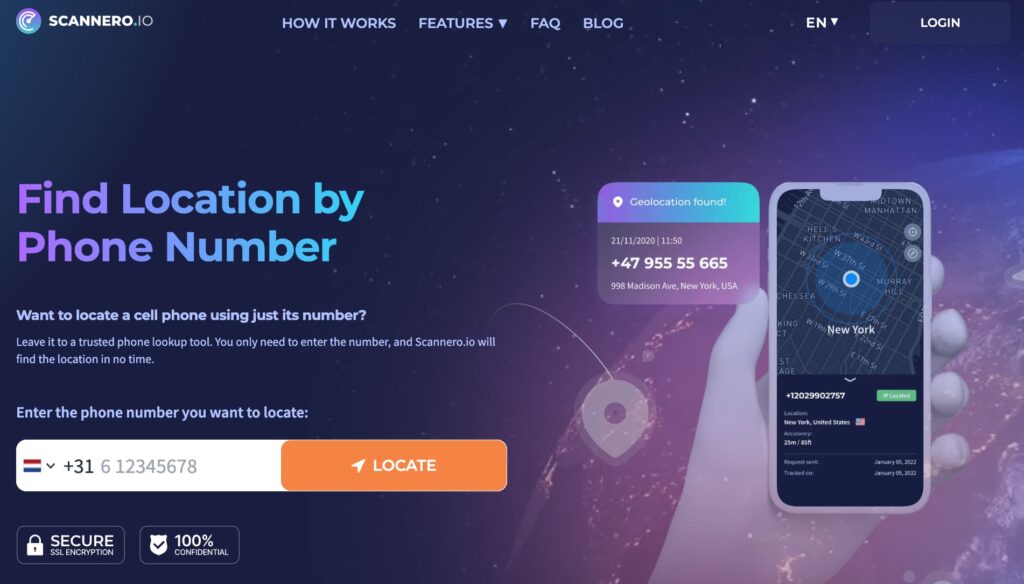
When a family member’s location matters more than an item’s location, Scannero fills the gap. Instead of relying on a shared device ecosystem, Scannero sends a location request directly to someone’s phone number. The person receives a standard SMS with a link. When they tap it, their GPS coordinates appear on a map in your Scannero dashboard within approximately 2 minutes. There’s no app to install on their device, it works on any phone — iPhone, Android, or basic SMS-capable phones — and it doesn’t require a shared Apple ID or iCloud account.
Here’s how to use Scannero:
- Create an account at scannero.com
- Enter the phone number of the family member you want to locate
- Scannero sends a discreet SMS with a location request link
- When they tap the link, their real-time GPS location appears on your map
This approach is particularly useful for parents whose children are too young for an Apple ID that accepts AirTag sharing, for families where not everyone uses an iPhone, and for anyone who needs a one-time location check without setting up a persistent shared tracking arrangement.
AirTag Sharing vs. Scannero vs. Tile
| Feature / Criteria | AirTag (Find My) | Scannero | Tile |
|---|---|---|---|
| Works with child accounts | No | Yes | Yes |
| Android compatible | No | Yes | Yes |
| Requires Apple ecosystem | Yes | No | No |
| Tracks people directly | No (objects only) | Yes | No (objects only) |
| No app install needed on target | No | Yes | No |
| Max shared users | 5 borrowers | Unlimited requests | Varies by plan |
| Setup time | 5–10 minutes | Under 2 minutes | 5–10 minutes |
| Network coverage | Find My (~2B+ Apple devices) | SMS + GPS | Tile network |
AirTag sharing is the right choice for Apple-only households tracking shared objects — car keys, luggage, pets, bikes. Tile is the better fit for mixed iPhone/Android households doing the same. Scannero fits neither category cleanly: it’s the answer when you need to confirm a specific person’s location in real time, not track where an object ended up.
Final Thoughts
AirTag sharing is a genuinely useful feature for families — one AirTag on the shared car keys, up to five people who can all see where those keys are. The setup takes under 10 minutes when all the requirements are in place. When they’re not — outdated iOS, child accounts, non-Apple devices — the feature either fails silently or doesn’t appear at all.
For the situations AirTag can’t reach, Scannero provides a direct path to a family member’s location using just their phone number. No Apple ID required, no iOS version check, no borrower limit. Send a request, they tap a link, and you have their GPS coordinates in about 2 minutes — whether they’re on an iPhone, an Android, or a basic phone with no data plan.

Related posts
 May 25, 2026
 May 25, 2026
 May 25, 2026





