



Table Of Contents

How to Share Your Location on iPhone: A Complete Guide
Sharing your location on iPhone is one of the most-used features in iOS — over 67% of iPhone users actively use it, according to Apple. Whether you’re meeting someone at a crowded venue, checking in with family, or making sure a loved one arrives safely, iPhone gives you five solid ways to share where you are.
This guide covers every method step by step: iMessage, Find My, Apple Maps, Google Maps, and WhatsApp. It also covers how to share your iPhone location with Android users, how to fix it when location sharing stops working, and what to do when the other person won’t share their location back.
If that last scenario sounds familiar — someone you need to locate isn’t sharing their location with you — Scannero handles exactly this. You enter their phone number, it sends them a text with a link, and when they tap it, you see their location on a map. No app needed on their phone, and it works whether they have an iPhone or an Android.
What Does Location Sharing on iPhone Actually Do?
When you share your location on iPhone, the device uses a combination of GPS, Wi-Fi networks, and cellular towers to determine your coordinates. The data is then transmitted to the recipient in real time through Apple’s servers or through a third-party app.
There are two distinct modes: a one-time location pin (a static snapshot of where you are right now) and Live Location (a continuous feed that updates as you move). Live Location requires both devices to run iOS 15 or later. The Check In feature, which notifies someone when you arrive at a destination, requires iOS 17 or later.
How to Share Your Location on iPhone via iMessage
iMessage is the fastest way to share your location on iPhone if you’re already in a conversation with someone. The option sits directly inside the Messages app and takes under 30 seconds.
- Open the Messages app and tap the conversation with the person you want to share with.
- Tap the person’s name or their photo at the top of the screen.
- Tap Share My Location.
- Choose how long to share: For One Hour, Until End of Day, or Indefinitely.
- The recipient receives a notification and can view your live location in the Find My app or directly in Messages.
To stop sharing, go back to the same conversation, tap the contact’s name, and select Stop Sharing My Location.
Note: Full Messages location sharing (including the location panel inside a conversation) requires iOS 17 or later. On iOS 15–16, use Find My for the same result.
How to Send Your Current Location as a Pin
If you only need to drop a one-time pin — showing exactly where you are right now without ongoing tracking — follow these steps:
- Open the Messages conversation.
- Tap the + button next to the message field.
- Select Location.
- Tap Send My Current Location.
The pin appears as a map preview in the chat. The recipient can tap it to get directions to that spot.
How to Share Location via the Find My App
The Find My app is the best option for ongoing location sharing, especially within families or close friend groups. It lets you track multiple people in a single view and manage sharing without opening Messages.
- Open the Find My app on your iPhone.
- Tap the People tab at the bottom of the screen.
- Tap Start Sharing Location (or Share My Location on older iOS versions).
- Type the contact’s name, phone number, or Apple ID.
- Select the sharing duration: One Hour, Until End of Day, or Indefinitely.
- Tap Send. The recipient gets a notification asking them to accept.
Once accepted, you each appear on the other’s Find My map. Both parties can see each other’s location as long as sharing is active.
How to Stop Sharing Location on Find My
- Open Find My and tap the People tab.
- Tap the person’s name.
- Tap Stop Sharing My Location, then confirm.
When you stop sharing, your location disappears from their Find My, Maps, Contacts, and Messages apps. On some iOS versions, the other person receives a notification that you’ve stopped — there is no way to hide this.
How to Share Location in Apple Maps (Share ETA)
Apple Maps has a different kind of location sharing: ETA sharing. Rather than showing your real-time position on a map, it shares your progress toward a destination — useful when you’re in transit and someone is waiting.
- Open Apple Maps and search for your destination.
- Tap Go to start navigation.
- Tap the route card at the bottom of the screen.
- Tap Share ETA.
- Select a contact from the list or send via Messages.
The recipient sees a map with your current position, your destination, and your estimated arrival time, updating live as you travel. ETA sharing ends automatically when you arrive.
How to Share Your Location on iPhone with Google Maps
Google Maps is the most flexible option because it works across platforms — iPhone users can share their location with Android users, and vice versa. You can also generate a shareable link, making it work even with contacts who aren’t in your address book.
- Open Google Maps on your iPhone.
- Tap your profile picture in the top-right corner.
- Select Location Sharing.
- Tap Share Location.
- Set the duration: choose a time limit or select Until you turn this off.
- Select a contact directly or tap Copy to Clipboard to send the link via any app.
The recipient sees your moving location on their Google Maps. If they don’t have Google Maps, the link opens in a browser showing your position on a map.
How to Share Location on iPhone to Android
Google Maps is the most reliable method for sharing your iPhone location with an Android device. Because it doesn’t require an Apple ID, the Android user doesn’t need to do anything except have Google Maps installed (or a browser).
For messaging-first users, WhatsApp is the better choice:
- Open WhatsApp and go to the conversation.
- Tap the + icon next to the message field.
- Select Location.
- Tap Share Live Location.
- Choose a duration: 15 minutes, 1 hour, or 8 hours.
- Tap Send.
The Android recipient sees your live position inside WhatsApp without needing Google Maps or an Apple ID.
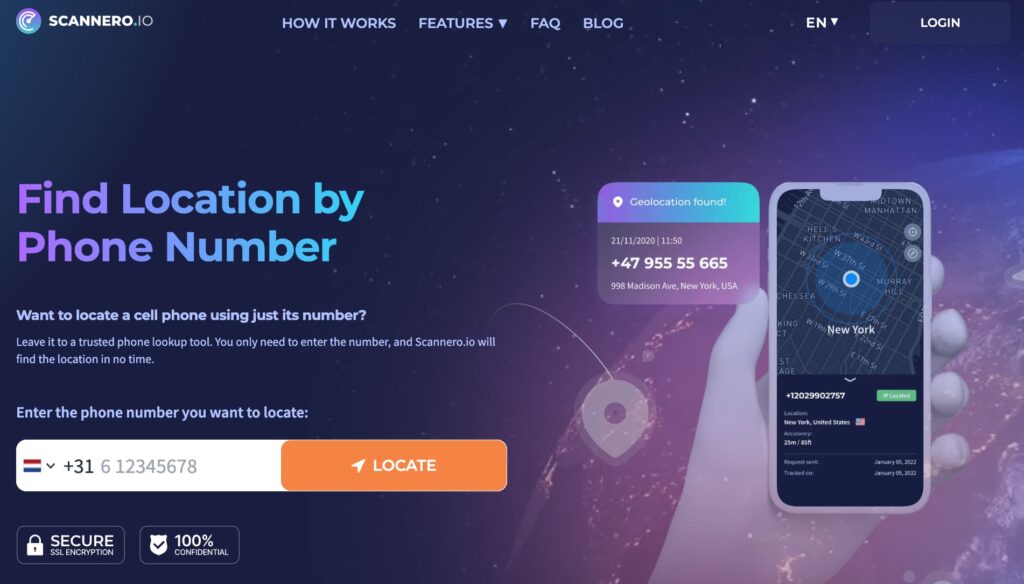
The trickier scenario is when you need to see an Android user’s location — and they haven’t offered to share it. Apple’s Find My and iMessage only work between Apple devices. Google Maps requires the other person to actively initiate sharing. If you’re in a situation where someone needs to confirm their location without installing an app, Scannero works differently: you enter their phone number, Scannero sends them a short text with a link, and when they tap it — on any device, any OS — you see their location on your dashboard. The process takes under two minutes from signup to result.
What to Do When Location Sharing Is Not Available on iPhone
The “Share My Location” option grays out or disappears for several reasons. Work through these five fixes in order:
- Check Location Services: Go to Settings > Privacy & Security > Location Services. Make sure the toggle is On. Then scroll to Find My and set it to While Using.
- Check your Apple ID: Open Settings, tap your name, and verify you’re signed in. Location sharing requires an active Apple ID session.
- Verify your iOS version: Live Location requires iOS 15+. The full Messages location panel requires iOS 17+. Go to Settings > General > Software Update and install any pending update.
- Check Screen Time restrictions: Go to Settings > Screen Time > Content & Privacy Restrictions > Location Services. If this is restricted, location sharing will be blocked.
- Disable Focus or Do Not Disturb temporarily: Some Focus modes block incoming location requests. Swipe down to Control Center and turn off any active Focus mode, then retry.
If the issue persists after all five steps, restart the iPhone and attempt to share again from a fresh Messages conversation.
Comparing Location Sharing Options: Which Should You Use?
| Feature / Criteria | Find My (Apple) | iMessage | Google Maps | Scannero | |
|---|---|---|---|---|---|
| Works with Android recipients | No | No | Yes | Yes | Yes |
| Requires app on recipient’s device | Yes (Find My) | Yes (iOS) | Yes (Google Maps) | Yes (WhatsApp) | No |
| Real-time live tracking | Yes | Yes | Yes | Yes (up to 8 hrs) | Yes |
| Recipient must actively share back | Yes | Yes | Yes | Yes | No |
| Works without target installing anything | No | No | No | No | Yes |
For tracking within an Apple-only household, Find My is the most seamless option — it integrates across all Apple devices with no setup beyond an Apple ID.
Google Maps and WhatsApp cover the Android gap. Both are solid for voluntary cross-platform sharing.
The gap they all share: they require the other person to participate. When that’s not guaranteed — a child on an Android phone, an elderly parent unfamiliar with apps, or a contact who simply hasn’t set up location sharing — Scannero closes that gap. You send one text; when they tap the link, you get their coordinates. No installation, no Apple ID, no back-and-forth setup required.
How to Manage Your Location Sharing Privacy on iPhone
Location sharing is opt-in by default, but it pays to audit your settings regularly.
- Review per-app permissions: Go to Settings > Privacy & Security > Location Services. For each app listed, choose Never, While Using the App, or Always. Most apps only need While Using — granting Always access to apps that don’t require it drains battery unnecessarily.
- Understand the battery cost: Continuous background location sharing adds approximately 5–15% more battery drain per day. If your battery is struggling, check which apps have Always access and downgrade them.
- Pause without disabling: Enabling Airplane Mode immediately suspends all location updates without turning off Location Services. Re-enable to resume. This is the fastest way to go dark temporarily without changing any settings.
- Know what others see when you stop: When you stop sharing via Find My or Messages, the other person’s app shows “Location Not Available” instead of your last known position. On older iOS versions they may receive a notification. There is no silent stop option within Apple’s native tools.
Frequently Asked Questions
Can iPhone share location with Android?
Yes, but only through cross-platform apps. Google Maps and WhatsApp both support location sharing between iPhone and Android. Apple’s Find My and iMessage location sharing only work between Apple devices.
Will someone know if I stop sharing my location?
Yes, in most cases. When you stop sharing in Find My or Messages, your location disappears from their view and they may see “Location Not Available.” On some iOS versions they receive a notification. Apple does not provide a way to stop sharing silently through native apps.
How do I share my location indefinitely on iPhone?
In both iMessage and Find My, when prompted to choose a duration, select Indefinitely or Share Indefinitely. The sharing continues until you manually stop it from Find My > People > [contact name] > Stop Sharing My Location.
Why does it say location unavailable on iPhone?
This message appears when the sharing person has turned off Location Services, lost internet or cellular connectivity, has a dead battery, or has stopped sharing. It can also appear if the device has been off for more than 24 hours. Check your own Location Services settings first, then ask the other person to verify theirs.

Related posts
 May 25, 2026
 May 25, 2026
 May 25, 2026





