


Table Of Contents

How to Track My Kid’s Phone: 6 Methods That Work in 2026
Knowing where your child is has always been part of parenting. With a phone in their pocket, that task should be easier — but it rarely feels that way. Built-in tracking tools require prior setup. Apps demand installation on both devices. And every method has a different set of limitations depending on whether your child uses Android, iPhone, or a mix of both.
This guide covers six ways to track my kids phone in 2026, from free built-in tools to phone-number-based trackers that work without any app on your child’s device. Each method is matched to a specific situation so you can find the right fit in under five minutes.
What to Consider Before You Start Tracking
Before picking a method, answer three questions. Your answers will point directly to the right tool:
- Do you need location only, or also app and content monitoring? Location tracking is a single feature. Full parental control — blocking apps, filtering websites, reading messages — requires a different category of tool entirely.
- Does your child know you will be tracking them? Transparent tracking works better long-term and avoids trust damage if your child discovers it. It also keeps you on solid legal ground.
- What device does your child use? Android and iPhone have completely different built-in tracking systems. A tool that works perfectly on one often doesn’t work at all on the other.
Track Your Child’s Phone Number with Scannero
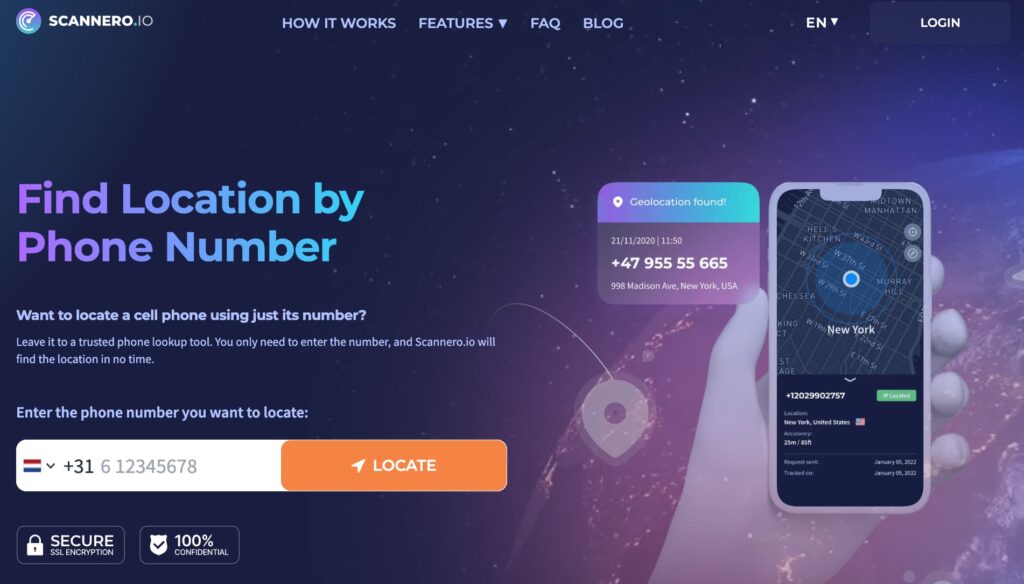
Every method above shares the same requirement: something must be set up on your child’s device before it works. Family Link needs to be installed. Find My needs location sharing enabled. Life360 needs the app running.
When a parent skips setup, their child switches to a new phone without syncing accounts, or a parent simply needs to confirm a child’s location quickly without going through an app install — none of those tools help.
Scannero was built for exactly this situation. Instead of requiring an app on your child’s device, it works from the phone number alone. A parent enters the child’s number, Scannero sends a discreet location-sharing link to that number, and when your child opens the message, their location appears on your Scannero dashboard map. No app needs to be installed on their phone. It works whether the child uses Android or iPhone, on any carrier.
How to Set Up Scannero to Monitor Your Child’s Location
Getting started takes under five minutes:
- Go to Scannero.com and create an account. A $0.89 trial gives you full access for 24 hours.
- Enter your child’s phone number in the location request field.
- Scannero sends a discreet link to your child’s number — it arrives as an ordinary-looking text or notification.
- When your child opens the link on their phone, their GPS location is captured and sent to your account.
- View the location on your Scannero dashboard map. Check back any time from the same account.
Scannero’s approach works best when the child knows about the tracking and has agreed to it — which also means no awkward conversation about why a mysterious link arrived on their phone. For parents who want a no-install backup to their existing Family Link or Find My setup, Scannero gives them a second way to reach their child’s location when the primary method fails.
Google Family Link (Android)

Google Family Link is a free parental control app built into Android. It gives parents location access, app approval controls, screen time limits, and content filters — all managed from a parent’s phone.
To set up Google Family Link:
- Download the Family Link app on your phone from Google Play or the App Store.
- Open the app and select “Manage your child” to create or link a Google Account for your child.
- On your child’s Android device, sign in to their Google Account and install the Family Link child app when prompted.
- Approve the supervision link — both devices will confirm the connection.
- Open the Family Link app on your phone, tap your child’s name, and select Location to see their current position on a map.
Location updates every few minutes when the phone is connected to data or Wi-Fi. Family Link is free and works on Android 5.0 or later.
What Google Family Link Can and Cannot Do
| Can Do | Cannot Do |
|---|---|
| Show child’s approximate location on map | Provide real-time GPS (updates every few minutes, not live) |
| Set daily screen time limits and schedules | Monitor calls, texts, or messages |
| Approve or block app downloads from Google Play | Apply geofencing or location-based alerts |
| Filter “mature” web content on Chrome | Block specific apps on iOS (no iOS child app exists) |
For most Android families with children under 13, Family Link covers the basics. When you need geofencing, real-time alerts, or a backup option if your child deletes the app, a second tool fills the gap.
Apple Screen Time and Find My (iPhone)
iPhone families have two overlapping tools: Screen Time for content and usage limits, and Find My for location. Both live under the Family Sharing umbrella and are free.
To set up location tracking on an iPhone:
- Open Settings on your phone and tap your Apple ID at the top. Select Family Sharing and add your child’s Apple ID.
- On your child’s iPhone, go to Settings > [their name] > Share My Location and turn it on.
- Set “Share From” to your child’s iPhone and make sure your Apple ID is listed as a recipient.
- On your device, open the Find My app and tap the People tab. Your child’s name appears with a location dot on the map.
To add content and screen time controls, go to Settings > Screen Time on your child’s device, enable it, and set a Screen Time passcode they don’t know. From there you can set App Limits, Downtime, and Content & Privacy Restrictions.
Using Find My to See Your Child’s Location in Real Time
Once Family Sharing and location sharing are active, the Find My app on your iPhone shows your child’s live GPS position. Tap their name in the People tab for a full-screen map view, their current address, and battery level. The location updates every few seconds when the phone is on and connected. Location sharing works across iPhone, iPad, and Mac — any Apple device signed in to their Apple ID.
Google Maps Location Sharing

For older children or teens who push back on dedicated parental control apps, Google Maps offers a middle ground: voluntary, transparent location sharing that the child initiates themselves.
To set up permanent location sharing via Google Maps:
- Open Google Maps on your child’s phone and tap their profile picture in the top right corner.
- Select Location sharing, then tap New share.
- Choose “Until you turn this off” to make the share permanent rather than time-limited.
- Select your Google account or enter your email. Your child taps Share to confirm.
You will then see your child as a dot on your own Google Maps, in real time, from any device signed in to your Google account. This works regardless of whether your child has an Android or iPhone, as long as they have a Google account.
The limitation is clear: the child controls it. A teen who changes their mind can turn off location sharing at any time. For younger children, Family Link or a dedicated app offers more reliable enforcement.
Life360 — Family Location App

Life360 is the most widely used dedicated family location app, with over 66 million active users. It goes well beyond basic location sharing with features built specifically for family safety.
Key Life360 features:
- Real-time location for all family members on a shared map
- Place alerts — notifications when your child arrives at or leaves school, home, or any saved location
- Driving reports — speed, phone use while driving, and hard-braking events
- Crash detection — automatic alert to family members after a severe collision
- Location history — see where your child was throughout the day
Life360’s free tier covers location and place alerts. The paid tier ($9.99–$29.99/month) adds crash detection, driving reports, and 30-day location history.
One factor worth knowing: in 2021, investigative reporting revealed that Life360 was selling precise location data from its users — including children — to data brokers. The company subsequently faced a class-action lawsuit and made changes to its data practices. Parents who prioritize data privacy may want to review Life360’s current privacy policy before signing up.
Third-Party Parental Control Apps
For parents who need more than location — call monitoring, text review, social media alerts, content filtering across every app — dedicated parental control software provides a level of oversight that built-in tools and Scannero don’t offer.
Three options worth considering:
mSpy — Monitors calls, SMS, WhatsApp, Snapchat, and Instagram. Tracks location with history. Requires app install on child’s device. Starts at $69.99 for 3 months. Works on Android and iPhone (iPhone requires iCloud access rather than app install on iOS).
Qustodio — Trusted by over 9 million parents. Covers app blocking, website filtering, YouTube monitoring, time limits, and social media scanning. Location tracking with geofencing included in paid plans. Starts at ~$54.95/year for up to 5 devices. Works on Android, iOS, Windows, Mac, and Chromebook.
Net Nanny — Strongest content filtering, including inside social media apps. Tracks location and supports time scheduling on both Android and iOS equally. Monitors Instagram, TikTok, and YouTube content within the apps rather than just blocking them outright. Starts at $39.99/year for one device.
These tools require app installation and a subscription. They are the right choice when location alone isn’t enough and you need a full picture of your child’s digital activity.
Scannero vs. Other Kids Phone Tracking Tools
| Feature / Criteria | Scannero | Google Family Link | Life360 | mSpy |
|---|---|---|---|---|
| Works by phone number alone | Yes | No | No | No |
| Requires app install on child’s device | No | Yes (Android only) | Yes (Android & iOS) | Yes |
| Real-time location | Approximate (GPS ping on open) | Every few minutes | Yes (continuous) | Yes (continuous) |
| Content/app monitoring | No | Yes (basic) | No | Yes (full) |
| Geofencing / place alerts | No | No | Yes | Yes |
| Free tier available | Yes ($0.89 trial) | Yes (fully free) | Yes (limited) | No |
| Works on any carrier / device | Yes | Android only | Android & iOS | Android & iOS |
When your child already has Family Link or Find My set up, those tools are the faster option for day-to-day location checks. Scannero is the practical choice when prior setup didn’t happen, when a child switches phones, or when you need to confirm a location outside your usual app without triggering alerts on their device. For parents who need to monitor a phone number rather than a linked account, Scannero closes the gap the platform tools leave open.
Is It Legal to Track Your Child’s Phone?
As a legal guardian, monitoring a minor child’s device is legal in the United States and in most other jurisdictions. The FTC explicitly acknowledges that parents have both the right and the responsibility to oversee their minor children’s online activity.
Three points to keep in mind:
- Transparency is the safest approach. Telling your child that their phone is being tracked — and explaining why — avoids trust damage if they discover it on their own. It also removes any legal ambiguity.
- Children over 13 require more care. While parental rights over a minor’s device generally extend to age 18, covert monitoring of teenagers crosses into gray territory in some states. Several US states have passed or are considering laws that require assent from minors over a certain age for certain types of monitoring.
- You cannot legally track another adult’s device. Monitoring a phone number belonging to an adult — a college student, a spouse, or any person over 18 — without their consent is illegal under federal wiretapping law and most state statutes, regardless of the tool used.
Scannero operates within legal boundaries by requiring the recipient to open a location-sharing link — meaning the target person actively participates in sharing their location, which addresses the consent requirement.
Frequently Asked Questions
Can I track my kid’s phone without them knowing?
Technically, some apps allow covert monitoring. But for children under 13, transparency is both the ethical and the more effective long-term approach — your child is more likely to behave safely online when they know oversight exists. For children over 13, covert monitoring risks both legal exposure and serious trust damage.
What’s the best free way to track my kid’s phone?
Google Family Link (Android) and Apple’s Find My with Family Sharing (iPhone) are both entirely free and cover basic location tracking. Google Maps permanent location sharing is another free option that works across Android and iPhone as long as your child agrees to share.
How do I track my kid’s phone if they deleted the tracking app?
If your child removes Family Link or Life360, location tracking stops until reinstalled. This is the most common failure point of app-based tracking. Scannero works without any app on your child’s device — enter their phone number and send a location request regardless of what apps they have or have deleted.
Does tracking work if the phone is turned off?
No active tracker — including Family Link, Find My, Life360, or Scannero — can update a phone’s location when it is powered off. The most recent location before shutdown is what all these tools display. Enabling background location and keeping location history turned on ensures the last known position is as recent as possible.
Start Tracking Your Child’s Phone Today
The right method depends on one thing: your current situation.
Android device with a Google account set up → start with Google Family Link, it’s free and covers the basics. iPhone family → enable Family Sharing and Find My in under 10 minutes. Older teen with their own Google account → Google Maps permanent location sharing is the least friction option. Need a family-wide solution with driving alerts → Life360 free tier covers the essentials.
No prior setup, child switched phones, or need to confirm a location without an app install → that’s where tracking your child’s phone number with Scannero works when none of the above do. Enter the number, send the request, see the location. No app on their device, no account linking required.
Whatever method you start with, setting something up today is better than waiting for a moment when you need it and have nothing in place.

Related posts
 May 25, 2026
 May 25, 2026
 May 25, 2026





