


Table Of Contents

How to Turn Off iMessage Location Without Them Knowing: 6 Methods That Work
Most guides on this topic skip a critical detail: the method you choose determines whether the other person gets a notification. Since iOS 17, tapping “Stop Sharing My Location” directly inside the iMessage thread triggers a “Location Expired” notice that appears in the other person’s conversation. That’s not a silent action.
There are six other ways to stop sharing your location without triggering that notice. Some leave a visible gap in Find My. One keeps your pin active but shows a fake position. This guide covers all six, explains exactly what the other person sees with each, and addresses what parents and partners can do when a family member’s location disappears from the map entirely.
Does iMessage Notify When You Stop Sharing Location?
The answer depends on both your iOS version and which method you use.
In iOS 16 and earlier, stopping location sharing via the iMessage thread did not send any notification to the other person. Since iOS 17, the behavior changed. When you tap “Stop Sharing My Location” inside a conversation in the Messages app, the other person sees a message in their chat thread saying your location has expired. That notice is visible to them — it’s not a push notification, but it’s there.
Not every method sends this notice. The table below shows which ones do.
| Method | “Location Expired” Notice Sent? |
|---|---|
| Stop via iMessage thread (iOS 17+) | Yes — visible in their chat |
| Stop via Find My app | No |
| Disable Location Services for Find My | No |
| Airplane Mode | No |
| Block and unblock contact | No |
| Turn off Precise Location | No |
| GPS spoofing (fake location) | No |
The safest approaches — no notification, no alert — are Methods 1 through 6 below. Avoid using the in-thread iMessage toggle if you’re on iOS 17 or later and want to stop sharing location without them knowing.
Method 1: Stop Sharing Location via the Find My App (No Notification)
This is the cleanest built-in option. Stopping location sharing through the Find My app does not trigger any notification or visible notice in the iMessage thread. The other person will eventually notice your pin disappears from their Find My “People” tab, but no alert is sent.
On iPhone:
- Open the Find My app
- Tap People at the bottom of the screen
- Tap the name of the person you want to stop sharing with
- Scroll down and tap Stop Sharing My Location
- Tap Stop Sharing Location to confirm
On macOS:
- Open the Find My app
- Click People in the left sidebar
- Click the person’s name
- Click Stop Sharing My Location
The person won’t receive any message. Their Find My app will show your location as unavailable the next time they check.
Method 2: Disable Location Services for Find My (No Notification)
This method cuts off the data source that powers iMessage location sharing altogether. Find My is the underlying engine — when iMessage shares your location, it’s using Find My’s service. Disabling location access for Find My in your iPhone’s settings stops all sharing silently.
- Open Settings
- Tap Privacy & Security
- Tap Location Services
- Scroll down and tap Find My
- Select Never under Allow Location Access
No notification is sent. Anyone checking your location in Find My or through an iMessage conversation will see “No Location Found.” This also stops you from appearing on your own devices in Find My, so keep that in mind if you use it to track your own iPhone.
Method 3: Enable Airplane Mode (No Notification — Temporary)

Airplane Mode is the fastest way to freeze your location without triggering any alert. It cuts cellular, Wi-Fi, and Bluetooth simultaneously. Your location pin stops updating at the last known point, and the other person sees a timestamp like “last seen 20 minutes ago” rather than a live position.
On iPhone:
- Swipe down from the top-right corner to open Control Center
- Tap the airplane icon — it turns orange when active
On Android:
- Swipe down from the top of the screen to open Quick Settings
- Tap the Airplane Mode icon
The limitation is practical: while Airplane Mode is on, you can’t make or receive calls, send messages, or use data. For a short window — a few hours, a commute, a meeting — this works well. For extended use, it raises questions just from being unreachable.
Method 4: Block and Unblock the Contact (iPhone Only — No Notification)
This method comes from a widely cited Reddit thread and has been independently verified. When you block a contact, iMessage location sharing stops immediately. When you unblock them, they remain unable to see your location — and no notification is sent to either their Messages app or Find My.
The trade-off: they will disappear from your Find My People list too, and if they actively check Find My for your location, they’ll notice you’re gone from their contacts list. In iMessage, they’ll see no alert — just an absence.
- Open the Contacts app on your iPhone
- Find the contact you want to stop sharing with and tap their name
- Scroll down and tap Block this Caller
- Wait a few seconds, then tap Unblock this Caller
After unblocking, your location remains private. Their calls and messages will come through normally again, but your location pin will not reappear.
Method 5: Turn Off Precise Location (No Notification — Partial Privacy)
If you don’t want to disappear from the map entirely, this method reduces tracking precision without stopping sharing. Your location still shows — but as a general area, not your exact address. No notification is sent.
- Open Settings
- Tap Privacy & Security
- Tap Location Services
- Scroll down and tap Messages
- Toggle off Precise Location
With Precise Location off, iMessage sees your approximate region — typically within a half-mile radius — rather than your GPS pin. This works well for situations where you want to stay loosely visible to someone without broadcasting your exact position.
Method 6: Use GPS Spoofing to Show a Fake Location
GPS spoofing keeps your location sharing active but redirects what others see. Instead of turning off location — which creates a visible gap in Find My — you broadcast a static fake address. The other person’s Find My continues to show a pin; it just points somewhere you chose, not where you actually are.
This works through third-party location changer tools that override the iPhone’s GPS signal at the system level. Once active, apps like Find My and iMessage read the virtual coordinates instead of real ones.
General flow:
- Download a location changer tool on your computer (Mac or Windows)
- Connect your iPhone via USB
- Select a fake address in the app’s map interface
- Activate the virtual location — it applies across all location-based apps
No notification is sent. The other person sees your pin at the fake location without any change to your sharing status.
The trade-off: location spoofing affects every app that uses GPS — maps, ride-sharing, and delivery apps will all read the false coordinates until you deactivate the tool. It’s best used when you need maximum stealth for a defined period.
What the Other Person Actually Sees: Method-by-Method
| Method | What They See | Notification? | Detection Risk |
|---|---|---|---|
| Stop via iMessage thread (iOS 17+) | “Location Expired” in chat | Yes | Very High |
| Stop via Find My app | Location disappears from Find My | No | Medium |
| Disable Location Services for Find My | “No Location Found” | No | Medium |
| Airplane Mode | Last known location (frozen) | No | Low (short-term) |
| Block and unblock contact | Removed from Find My people list | No | Medium |
| Turn off Precise Location | Approximate area only (pin still visible) | No | Low |
| GPS Spoofing | Active pin at fake location | No | Lowest |
Airplane Mode and GPS spoofing create the least visible change. The Find My app method and the Location Services method leave a gap in Find My but send no alerts. The in-thread iMessage toggle is the only one that actively notifies the other person — and it’s the one most people try first.
When Someone Turns Off Location and You Need to Know Where They Are
When a family member stops sharing iMessage location — or their pin simply goes dark — the person monitoring loses visibility with no warning and no fallback inside Apple’s system. For parents tracking a teenager, or partners coordinating safety during travel, this gap can be genuinely worrying.
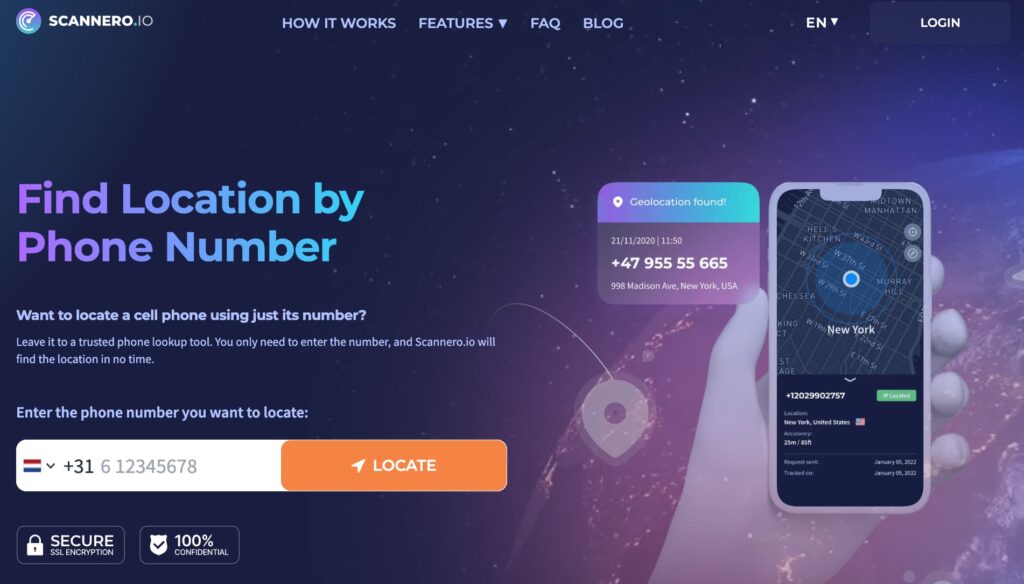
Scannero is built specifically for this scenario. Instead of relying on a shared app that the other person controls, Scannero sends a location request directly to their phone number. When the recipient taps the link in the SMS, their current GPS coordinates appear on your map in about 2 minutes. No app needs to be installed on their device, and it works regardless of whether their iMessage location is on, paused, or disabled.
Here’s how to use it:
- Create an account at scannero.com
- Enter the phone number of the person you want to locate
- Scannero sends a discreet SMS with a location request link
- When the recipient taps the link, their real-time GPS location appears on your dashboard map
Scannero works independently of Apple’s Find My system. It doesn’t matter whether the person has iMessage location sharing enabled, turned off via Find My, or blocked through a contact setting — the location request goes directly to their number. It also functions on basic phones without a data plan, because the SMS carries the request and the link handles the response.
For parents whose teens have learned to use the methods above to drop off the map, Scannero provides a direct alternative that doesn’t depend on the teen’s in-app settings. For anyone checking on an elderly family member or a partner traveling internationally, it’s a single check that delivers a result in under 3 minutes.
Scannero vs. Find My vs. GPS Spoofing Apps
| Feature / Criteria | Scannero | Apple Find My | GPS Spoofing Apps |
|---|---|---|---|
| Works when iMessage location is off | Yes | No | N/A |
| Requires app install on target device | No | Yes (Apple device required) | Yes |
| Tracks by phone number only | Yes | No | No |
| Consent-based | Yes (link tap) | Yes (mutual sharing) | No (self-use only) |
| Works without data plan on target device | Yes | No | No |
| Shows real GPS location | Yes | Yes | No (fake coordinates) |
| Setup time | Under 2 minutes | Requires mutual setup | 10–30 minutes |
Scannero fits the situation where you need a location check and can’t rely on shared app settings. It’s for the person on the other side of the equation — the one who opened Find My and saw a blank space where a family member’s pin used to be. One message, one tap from them, one result on your map.
Final Thoughts
The safest ways to stop sharing iMessage location without triggering a notification are the Find My app method, disabling Location Services for Find My, Airplane Mode, or the block-and-unblock trick. All four work silently in iOS 17 and later. The one method to avoid — if silent is what you need — is the in-thread iMessage toggle, which now sends a visible “Location Expired” notice since iOS 17.
For anyone whose family member or partner has stopped sharing their location and left a blank pin behind, Scannero provides a direct path to a location check that doesn’t depend on their app settings. Enter their number, send the request, and their GPS coordinates arrive in about 2 minutes — independent of whatever changes they made in iMessage or Find My.

Related posts
 May 25, 2026
 May 25, 2026
 May 25, 2026





