


Table Of Contents

Does Sharing Your Location Drain Your Battery? Here’s the Real Answer
Does Sharing Your Location Drain Your Battery? Here’s the Real Answer
Yes — location sharing does drain your battery. But the amount ranges from almost nothing to a significant chunk of your daily charge, depending entirely on the method being used.
The variable that matters most is whether your phone’s GPS chip is running continuously in the background or firing briefly on demand. An app that polls your position every few seconds burns through hardware. A link that asks for your location once and then stops barely registers. Understanding which category your tracking method falls into explains why some people lose 20% battery to location apps and others notice nothing at all.
How Location Sharing Actually Uses Battery

Location sharing isn’t one action — it’s a chain of hardware events. Each component in that chain draws power:
| Hardware Component | Role | Battery Impact |
|---|---|---|
| GPS chip | Communicates with satellites for precise positioning | Highest — especially in weak signal |
| Cellular radio | Transmits location data to servers or other phones | Medium |
| Wi-Fi radio | Assists GPS for faster positioning (cell + Wi-Fi fusion) | Medium |
| Bluetooth | Passive relay for Find My network and AirTags | Low |
| Motion sensors | Detects movement to decide when to update | Low |
The GPS chip is the main culprit. In strong signal conditions, active GPS use drains roughly 13% more battery than baseline phone use. In weak signal areas — tunnels, rural roads, dense buildings — the phone works harder to maintain satellite contact, and battery drain can reach 38% more than baseline. This is why the same app drains differently depending on where you are.
The Three Types of Location Sharing and What Each Costs Your Battery
Most guides treat location sharing as a single thing. It isn’t. There are three meaningfully different methods with very different battery costs:
| Method | How GPS Works | Daily Battery Impact | Best For |
|---|---|---|---|
| Continuous active GPS (“Always”) | GPS runs in background at all times, even when phone is idle | 20–25% more than baseline | Real-time tracking apps like Life360 with driving detection |
| Passive / event-based (“While Using”) | GPS fires when app is open or significant movement is detected | 5–15% more depending on usage | Apple Find My person-sharing, Google location sharing |
| Link-based on-demand | GPS fires briefly when recipient taps a link, then stops | Near zero additional drain | One-time location checks, occasional check-ins |
The gap between the first and third method is enormous. Continuous GPS tracking is a sustained hardware workload. Link-based sharing is a single, brief burst. For users who don’t need second-by-second location updates, choosing a lower-tier method delivers the location data they need at a fraction of the battery cost.
Does Life360 Drain Battery? What the Data Shows

Life360 is the most battery-intensive common location app because it operates at the top tier of that spectrum. To function correctly — tracking speed, detecting driving events, and updating location in real time — it requires “Always” location access, which means GPS runs continuously in the background even when the phone is sitting still.
Real-world comparisons show that apps set to “Always On” location access consume 20–25% more battery per day than the same app set to “While Using.” In direct testing between Life360 and Apple Find My, Life360 draws an additional 9–11% battery per day due to its high-accuracy GPS requirements for driving reports and speed monitoring.
If Life360 is draining your battery faster than expected, these adjustments help:
- Within Life360’s settings, check if there is a battery-saving mode or reduce location accuracy if driving reports aren’t needed for your use case
- On iPhone: go to Settings → scroll to Life360 → Location → consider switching to “While Using the App” if background tracking precision isn’t critical
- On Android: go to Settings → Apps → Life360 → Battery → select Unrestricted to stop the OS from fighting the app’s background processes (battery optimization blocking is a common cause of GPS failures and can also make Life360 work harder when it does get access)
- Keep the phone in an area with strong signal — Life360 running in a weak-signal environment will drain significantly more battery as the GPS chip compensates
Why Does Life360 Say “Battery Saver Is On” or “Phone Is Out of Battery”?
These two warnings confuse a lot of users, and neither is a malfunction.
“Battery saver is on” means the tracked person’s phone has Low Power Mode enabled at the OS level — on iPhone this is the yellow battery icon setting. Life360 detects this because Low Power Mode throttles background GPS updates. Life360 does not have its own battery saver toggle; the warning reflects the state of the tracked phone’s OS settings, not anything within the app itself.
“Phone is out of battery” means the tracked device’s battery reached 0% and the phone shut down. Life360 freezes the pin at the last known location and displays this warning. It is not indicating a charging error or app failure — the phone is simply dead.
Is the Life360 battery percentage accurate? Life360 reads the battery level that the phone’s operating system reports, which is the same figure shown in the phone’s status bar. It’s as accurate as the phone’s own battery reading, typically within 1–2%. If Life360 shows an unexpected percentage, check the phone’s own battery indicator first.
Does Find My Drain Battery?
Apple’s Find My is significantly more battery-efficient than Life360 for person-to-person location sharing. There are two reasons for this.
First, Find My uses end-to-end encrypted Bluetooth relay via the Find My network as its primary mechanism — a passive, low-power signal rather than continuous GPS satellite communication. Second, Find My integrates directly with iOS using Apple’s system-level efficient location APIs, which are optimized for battery performance in ways third-party apps can’t match.
Real-world testing places Find My’s additional battery drain at under 5% per day for person-sharing. AirTag tracking (sharing an item’s location) uses essentially zero extra battery on the iPhone — AirTags have their own CR2032 battery and the passive detection is handled by the Find My network of other Apple devices, not your phone’s GPS.
Does Turning Off Location Save Battery?
Yes — but the saving depends on what was running before you turned it off.
If you had an always-on GPS app like Life360 active, disabling location entirely can recover 20–30% of daily battery life. If you only had passive location features running (Find My, weather app geolocation), the difference is smaller — closer to 5–10%.
The smarter approach for most users isn’t turning location off completely — it’s switching from “Always” to “While Using the App” for specific apps. This change captures most of the battery savings without breaking maps, navigation, weather, or other location-dependent features you want working.
The approximate battery saving from switching from “Always” to “While Using” for a single GPS-intensive app: 15–20% reduction in daily battery drain from that app alone.
5 Ways to Reduce Battery Drain From Location Sharing
1. Switch from “Always” to “While Using the App”
This is the single highest-impact change for most users.
On iPhone: Settings → Privacy & Security → Location Services → tap the app → select While Using the App
On Android: Settings → Apps → tap the app → Permissions → Location → Allow only while using the app
2. Disable Precise Location for apps that don’t need exact GPS
Precise Location uses the full GPS chip. Disabling it forces the app to use cell tower and Wi-Fi triangulation instead — less accurate (within a few hundred meters) but uses significantly less power.
On iPhone: Settings → Privacy & Security → Location Services → tap the app → toggle off Precise Location
3. Fix battery optimization on Android
Android’s battery optimization can paradoxically make location apps work harder by cutting and restarting them repeatedly. Set Life360 or any persistent tracking app to “Unrestricted” battery use: Settings → Apps → Life360 → Battery → Unrestricted
Samsung users: also check Settings → Battery and device care → Battery → Background usage limits, and remove Life360 from the Sleeping or Deep Sleeping apps list.
4. Stay in areas with strong signal when tracking matters
GPS in weak signal uses up to three times more power than in strong signal. If you know you’ll be in a dead zone, consider pausing tracking apps rather than letting them burn battery trying to maintain a GPS lock that isn’t coming.
5. Use a link-based or passive method when continuous precision isn’t needed
For occasional location checks — confirming someone arrived somewhere, checking in during travel — an always-on GPS app is overkill. A single on-demand location request does the job without the sustained battery cost.
The Lowest-Battery Way to Share or Check Someone’s Location
Always-on location tracking burns battery on both ends. The tracked person’s phone runs GPS continuously. Your phone polls the app for updates. Neither phone gets a break from location-related hardware activity.
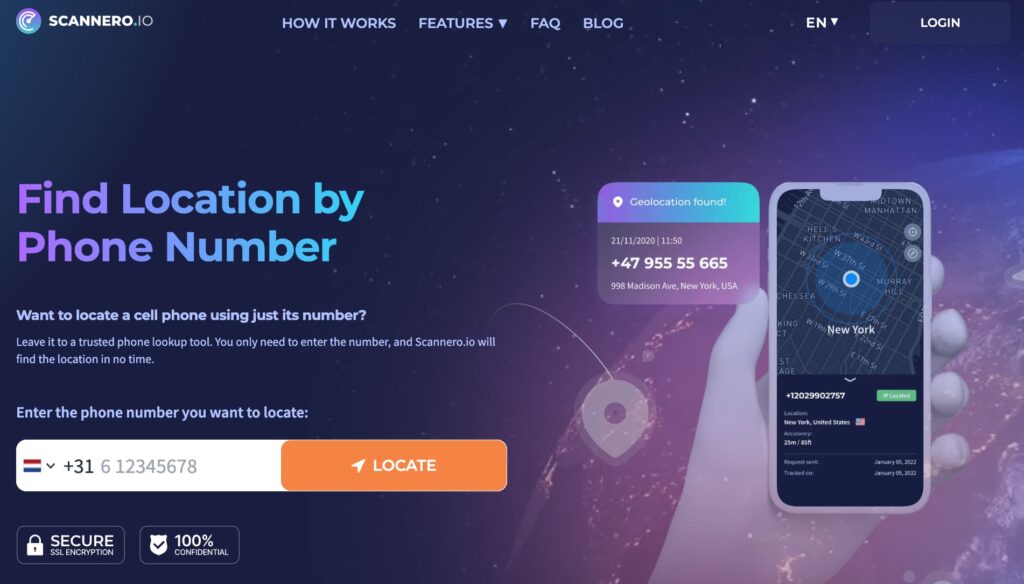
Scannero works differently. When you need to know where someone is, you enter their phone number and Scannero sends them an SMS with a location request link. When they tap the link, their GPS fires briefly to capture their current coordinates, transmits once, then stops. There is no background GPS running between requests — on their device or yours. The battery impact of a single Scannero request is negligible compared to a day of Life360 active tracking.
Here’s how to use it:
- Go to scannero.com and create an account
- Enter the phone number of the person whose location you want
- Scannero sends them an SMS with a location request link
- When they tap it, their real-time GPS location appears on your dashboard map within about 2 minutes
This fits the use case of parents who want occasional check-ins without burning their teenager’s battery all day, partners confirming someone arrived safely, or anyone who needs a one-time location confirmation without building out a persistent tracking setup.
Scannero vs. Life360 vs. Find My: Battery Impact Compared
| Feature / Criteria | Scannero | Life360 | Apple Find My |
|---|---|---|---|
| GPS mode on tracked device | Brief burst per request | Continuous (“Always”) | Passive Bluetooth + periodic GPS |
| Runs in background continuously | No | Yes | Minimal |
| Daily battery impact (tracked device) | Near zero between requests | 20–25% more than baseline | Under 5% more |
| Daily battery impact (viewer’s device) | Near zero | Moderate (app polling) | Low |
| Requires “Always” location permission | No | Yes (for full functionality) | No |
| Works on any phone (iPhone + Android) | Yes | Yes | iPhone only |
| Driving reports and speed tracking | No | Yes | No |
Life360 is the right choice when you need continuous, always-updated tracking with driving data. Find My fits Apple-only households who want passive, low-drain family location sharing. Scannero fits anyone who needs a location answer right now without committing to sustained GPS activity on either device.
Final Thoughts
Location sharing does drain battery — but the range runs from near zero to a significant daily cost depending entirely on which method you’re using. Link-based on-demand requests barely register. Passive Bluetooth-relay sharing (Apple Find My) adds under 5%. Always-on GPS apps like Life360 can cut daily battery life by 20–25%, and that number climbs in weak signal conditions.
The question worth asking isn’t whether location sharing drains battery. It’s whether the drain matches the use case. Continuous tracking with driving reports is worth the battery cost for families who rely on that data. For everyone else who just needs to know where someone is from time to time, a tool that fires GPS once per request keeps both phones running longer.

Related posts
 May 25, 2026
 May 25, 2026
 May 25, 2026





