

Spis treści

Jak usunąć konto w Life360: kompletny przewodnik krok po kroku
Life360’s own support documentation states it clearly: deleting your account does not cancel your subscription. If you delete the account without canceling first, billing continues until you separately cancel through the App Store or Google Play — and Life360 does not issue refunds for unused time.
There are also two other blockers most guides skip. If you are the only Admin of a Circle, your account deletion will fail until you transfer the Admin role or delete the Circle. And if you simply uninstall the app without deleting your account, your location history and all stored data remain on Life360’s servers.
This guide walks through the correct order: cancel subscription first, delete account second — with steps for every platform.
Before You Delete: Two Things to Do First
Before touching the Delete Account button in the app, complete both of these:
- Cancel your active subscription. Deleting your account does not stop billing. Life360’s terms confirm no refunds are issued for unused subscription time. Cancel through whatever platform you used to subscribe (App Store, Google Play, or life360.com) before proceeding.
- Handle the Admin role if you set up the Circle. If you created your Life360 Circle, you are the Admin. You must either transfer the Admin role to another member or delete the Circle entirely before your account can be removed. Skipping this step will block the deletion process.
Step 1: How to Cancel Your Life360 Subscription
The cancellation path depends on where you originally subscribed.
If you subscribed via iPhone or iPad (App Store):
- Open the Settings app on your iPhone
- Tap your Apple ID at the top
- Tap Subscriptions
- Find Life360 in the list and tap it
- Tap Cancel Subscription and confirm
If you subscribed via Android (Google Play):
- Open the Google Play Store
- Tap your profile icon in the top-right corner
- Tap Payments & subscriptions → Subscriptions
- Find Life360 and tap it
- Tap Cancel Subscription and follow the prompts
If you subscribed directly through Life360’s website:
- Go to life360.com and sign in
- Navigate to Settings → Manage Membership
- Tap Cancel Subscription and confirm
If you don’t see a Cancel Subscription option anywhere in the app, another Circle member may be the subscriber for the plan. Ask the account holder to log in and cancel from their account. Your plan stays active until the end of the current billing period — no partial refunds are issued regardless of when you cancel.
Step 2: How to Delete Your Life360 Account
Once the subscription is canceled (or if you never had a paid plan), follow these steps to permanently delete your account:
- Open the Life360 app on your phone
- Tap the gear icon (Settings) in the lower-right corner
- Tap Account
- Scroll to the bottom and tap Delete Account
- Tap “Yes, I confirm the above” and then tap Continue
- Tap Send email — Life360 sends a confirmation link to your registered email address
- Open the email, click the confirmation link, complete the Captcha, and your account is deleted
Check your spam folder if the confirmation email doesn’t arrive within a few minutes. The deletion is permanent and cannot be undone. All location history, driving events, Circle data, and personal information are removed from Life360’s servers.
If You’re the Circle Admin: What to Do Before Deleting
If you created your Life360 Circle, you hold the Admin role. The deletion process will block you until this is resolved. You have two options:
Option A: Transfer the Admin role to another member
- Open Life360 → tap Settings → Circle Management
- Tap the name of the member you want to make Admin
- Tap Make Admin and confirm the change
- Once another Admin is in place, proceed to Step 2 above
Option B: Delete the Circle entirely
- Open Life360 → tap Settings → Circle Management
- Tap Delete Circle Members and remove each member one by one (each removed member receives a notification)
- Once you are the only member remaining, scroll to the bottom and tap Leave Circle
- Confirm — the Circle and all its data are permanently deleted
- Proceed to delete your account via Step 2 above
Note that removing members individually sends each of them a push notification. There is no way to remove members silently.
How to Leave a Life360 Circle Without Deleting Your Account
If you want to exit one specific Circle but keep your Life360 account active, leaving the Circle is a separate action from account deletion:
- Open Life360 and tap the gear icon (Settings)
- Tap the Circle name at the top of the screen (the Circle Switcher)
- Tap Circle Management
- Scroll down and tap Leave Circle
- Confirm your choice
Once you leave, you lose visibility of all members in that Circle and they lose visibility of you. Your location disappears from their map. You cannot rejoin unless a Circle member re-invites you.
If you are the only Admin, you’ll need to promote another member to Admin first using the steps in the previous section, or delete the Circle entirely.
Does Life360 Notify When You Leave or Delete?
Leaving a Circle: Yes. When you leave a Circle, Life360 sends a push notification to the Circle Admin and all other members. A message also appears in the Circle’s activity feed, visible to all remaining members. There is no way to leave a Circle silently through the official app.
Deleting your account: Partially. There is no direct in-app notification sent to Circle members when you delete your account, but your Bitmoji disappears from the map immediately. Members who check the map will see your pin is gone with no explanation. It is effectively visible by absence rather than by notification.
If You Delete the App — Does Life360 Still Track You?
Deleting the app stops real-time tracking immediately. The moment Life360 is uninstalled from your phone, it loses access to GPS and the network — your location stops updating on other members’ maps, and your pin freezes at the last recorded position.
However, deleting the app alone does not delete your data. Everything Life360 has already collected — location history, driving reports, Circle membership — stays on their servers until you delete your account. Here’s the practical difference:
| Action | Stops Live Tracking? | Deletes Stored Data? | Stops Billing? |
|---|---|---|---|
| Uninstall the app | Tak | Nie | Nie |
| Delete the account | Tak | Tak | Nie |
| Cancel subscription | Nie | Nie | Tak |
| All three combined | Tak | Tak | Tak |
For complete removal — no tracking, no stored data, no billing — all three steps are required.
How to Delete Your Life360 Location History
Location history is permanently deleted when you delete your account. There is no separate button within the app to clear individual trips or wipe your history while keeping the account active.
If you want your data removed without deleting your account, you have one other path: submit a data deletion request through Life360’s privacy portal under CCPA (California residents) or GDPR (EU users) rights. Go to life360.com, navigate to Privacy, and look for the Data Deletion Request option. Life360 is required to process these requests under applicable privacy law.
After Leaving Life360: Using Scannero for Family Location
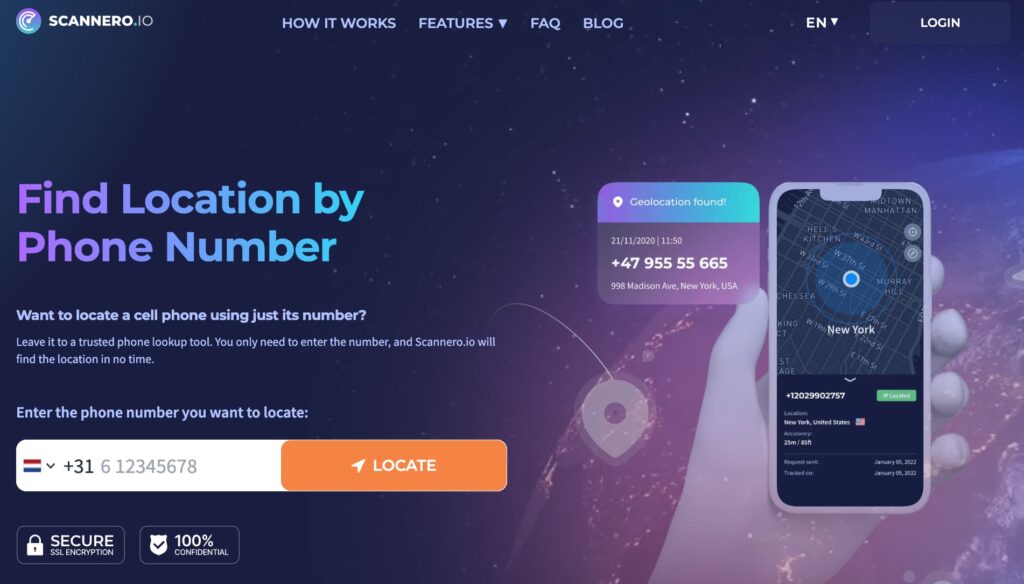
Many people leaving Life360 are parents or partners who still want occasional location visibility — just without the overhead of a persistent tracking subscription, circle management, and admin responsibilities.
Scannero works differently from Life360. Instead of an always-on shared tracking app, Scannero sends a location request directly to a phone number when you actually need it. The person receives a standard SMS with a link. When they tap it, their real-time GPS coordinates appear on your map within about 2 minutes. No app installation on their device, no circles to manage, no subscription to remember to cancel.
Oto jak z niego korzystać:
- Utwórz konto na scannero.com
- Wprowadź numer telefonu osoby, którą chcesz zlokalizować.
- Scannero wysyła na ten numer wiadomość SMS z linkiem do żądania lokalizacji
- Po kliknięciu łącza ich lokalizacja GPS pojawi się na pulpicie nawigacyjnym
This works independently of any tracking app the other person has or doesn’t have installed. It’s particularly useful for families who want occasional check-ins — when a teenager arrives somewhere, when a partner lands from a flight, when an elderly family member is out — without building a permanent surveillance system around it.
Scannero vs. Life360: Key Differences
| Cecha / Kryteria | Scannero | Life360 |
|---|---|---|
| Requires persistent app on target device | Nie | Tak |
| Circle/admin management needed | Nie | Tak |
| Ongoing subscription billing | No (pay per use or low-cost trial) | Tak |
| Śledzenie tylko według numeru telefonu | Tak | Nie |
| Works without shared account | Tak | Nie |
| Real-time location on demand | Yes (link-based) | Tak (ciągły) |
| Stored location history | Nie | Yes (until account deleted) |
| Czas konfiguracji | Poniżej 2 minut | 10–20 minutes |
Life360 is the right tool for families who want continuous, always-on location sharing built into a shared platform. Scannero fits families who want occasional location checks on demand, without the commitment of a managed subscription and the complications of account deletion when they want to stop.
Przemyślenia końcowe
The correct sequence for fully removing Life360 is: cancel your subscription first (through App Store, Google Play, or life360.com), then delete your account through the app’s Settings → Account → Delete Account flow. Deleting the app alone stops tracking but leaves your data on Life360’s servers and does not stop billing. Leaving a Circle sends a notification to all members — there is no silent exit through official channels.
For families transitioning away from Life360 who still want a way to confirm where someone is when needed, Scannero provides that in under 2 minutes using just a phone number — no circles, no admin roles, no subscription to eventually cancel.

Powiązane posty
 25 maja 2026 r.
 25 maja 2026 r.