


Table Of Contents

How to Stop Sharing Location Without Them Knowing: 6 Methods That Work
Whether stopping sends a notification depends entirely on which app you’re using and which method you choose — not on the action itself. Some methods are genuinely silent. Others don’t push an alert but leave a visible gap or status label that anyone checking will notice immediately.
This guide covers 6 methods across Find My, iMessage, Google Maps, and Life360. For each one, it explains exactly what the other person sees — so you can choose the approach that fits your situation.
Does Stopping Location Sharing Send a Notification?
This is the question most people actually want answered before they touch any settings. The short answer: in most cases, no push notification is sent. But “no notification” doesn’t mean invisible.
| App | Push Notification Sent? | What the Other Person Sees Instead |
|---|---|---|
| Apple Find My | No | Your name disappears from their People tab |
| iMessage location share | No | “Location expired” may appear in their chat thread (iOS 17+) |
| Google Maps | No | Your location becomes unavailable if they check |
| Life360 | No | “Location Sharing Paused” status label appears on your map pin |
| Airplane Mode (any app) | No | Your location freezes at last known position with a timestamp |
| GPS Spoofing | No | Your pin stays active at a fake location — nothing changes visually |
The key distinction: no notification means no push alert to their lock screen. It does not mean they won’t notice if they actively open the app and check. Find My and Google Maps are the most passive — your location simply becomes unavailable with no label. Life360 is the most transparent — a visible status label always appears.
Stop Sharing via the Find My App (No Notification — iPhone)
This is the cleanest built-in method for stopping location sharing with one specific person. No push notification is sent, and no in-app message appears in any conversation thread.
- Open the Find My app on your iPhone
- Tap People at the bottom of the screen
- Tap the name of the person you want to stop sharing with
- Scroll down and tap Stop Sharing My Location
- Confirm when prompted
What the other person sees: the next time they open Find My and check the People tab, your name is simply gone. There’s no timestamp, no alert, no label. Your location becomes unavailable without any explanation.
One nuance: if you originally started sharing via an iMessage conversation, stopping through Find My may still trigger a “Location expired” system line in that specific iMessage thread — visible only if they open the conversation. This is not a push notification. It’s a quiet in-thread note.
How to Stop Sharing with Everyone at Once (Find My)
If you want to disappear from everyone’s Find My at the same time:
- Open Find My → tap the Me tab at the bottom
- Tap the toggle next to Share My Location to turn it off
This stops sharing with all contacts simultaneously. Keep in mind that it also prevents Find My from locating your own device if it goes missing — re-enable it when you’re ready to be findable again.
Stop Sharing via iMessage (In-Thread Note — Not a Push Alert)

When you share location through an iMessage conversation, you can stop sharing from within that same thread. The behavior is more nuanced than most guides explain.
- Open the iMessage conversation with the person
- Tap their profile name or icon at the top of the screen
- Tap Stop Sharing My Location
What you see: a system message in your own conversation view — “You stopped sharing your location with [Name].”
What they see: in iOS 17 and later, “Location expired” may appear as a system note in their conversation thread. This is visible only if they open that specific conversation — it is not a push notification to their lock screen. In iOS 16 and earlier, no message appeared in their view at all.
The safest approach if you want to avoid even the in-thread note: stop sharing via the Find My app (Method 1) rather than through the iMessage thread. Find My’s stop-sharing action does not create a visible note in iMessage.
Stop Sharing on Google Maps (No Notification — iPhone & Android)

Google Maps sends no notification of any kind when you stop sharing your location — no push alert, no in-app message, no visible label. The other person simply finds that your location is no longer available if they check the sharing link or the Google Maps app.
On iPhone or Android:
- Open Google Maps
- Tap your profile photo or initial in the top-right corner
- Tap Location sharing
- Find the person you want to stop sharing with and tap their name
- Tap Stop
To stop sharing with everyone at once:
- Follow steps 1–3 above
- Toggle off Location Sharing entirely
What they see: if they open Google Maps and check your shared location, they’ll see that it’s no longer available or that sharing has ended — with no explanation and no timestamp. Google Maps is one of the most passive methods available.
Enable Airplane Mode (Freezes Location — Bitmoji Stays)

Airplane Mode is the only method where your location doesn’t visibly disappear. Instead of going blank, your position freezes at the last known point. Anyone checking sees your pin at a specific address with a timestamp like “last seen 2 hours ago.”
On iPhone:
- Swipe down from the top-right corner to open Control Center
- Tap the airplane icon — it turns orange when active
On Android:
- Swipe down from the top of the screen
- Tap the Airplane Mode icon
No notification is sent. No status label appears. Your location simply stops updating at the frozen point.
The limitation: you lose all phone calls, texts, and data while Airplane Mode is on. This works well for short windows — a few hours, a meeting, a trip segment — but sustained use raises questions from anyone who tries to call you.
Block and Unblock the Contact (iPhone Only)
This method surfaced on Reddit’s r/applehelp and has been independently verified. Blocking a contact immediately stops all location sharing with them. When you unblock them, your location remains hidden — and no notification is sent to either of your devices.
- Open the Contacts app on your iPhone
- Find the contact you want to stop sharing with
- Scroll down and tap Block this Caller
- Wait a few seconds
- Tap Unblock this Caller
What they see: your name disappears from their Find My People list. If you were sharing location via iMessage, they may see “Location expired” in their chat thread. No push notification is sent.
The trade-off: anyone who actively opens Find My and looks for you will notice you’re gone from their contacts list. This method is quiet from a notification standpoint but visible to an attentive person checking the app.
Stop Sharing on Life360 (Status Label Visible — No Push Notification)
Life360 is designed for continuous family visibility, so there is no fully invisible way to stop sharing. When you pause or disable location sharing, no push notification goes to Circle members’ lock screens — but a visible “Location Sharing Paused” label appears on your map pin for anyone who opens the app.
Option A — In-app pause (cleanest approach):
- Open Life360
- Tap Settings in the lower-right corner
- Tap the Circle name at the top to select the circle
- Tap Location Sharing
- Toggle it off
What they see: your pin stays on the map at your last known location, with “Location Sharing Paused” displayed below your name. No push notification is sent. If they open the app, the label is clearly visible.
Option B — Offload the app (iOS only):
- Go to Settings → General → iPhone Storage → Life360
- Tap Offload App
Offloading stops the app from running and freezes your location at the last known point without changing your status label. It looks more like a connectivity issue than a deliberate pause — but after several hours, attentive Circle members may notice the pin hasn’t moved.
For most Life360 situations, Option A is better: the “Location Sharing Paused” label signals privacy, not an emergency. It doesn’t look like your phone died or lost signal.
How to Stop Sharing Location With Just One Person (Not Everyone)
The most common scenario: you want to stop sharing with a specific person without it affecting everyone else. Here’s how each platform handles this:
| Platform | Stop With One Person? | Method | What That Person Sees |
|---|---|---|---|
| Apple Find My | Yes | Find My → People → their name → Stop Sharing | Disappears from their People list |
| iMessage | Yes | Open chat → their name → Stop Sharing | “Location expired” in thread (iOS 17+) |
| Google Maps | Yes | Maps → Profile → Location sharing → their name → Stop | Location becomes unavailable |
| Life360 | Yes (per Circle) | Settings → Circle → Location Sharing → off | “Location Sharing Paused” label |
All four platforms support stopping with one person independently. You don’t have to disable location sharing globally to get privacy from a specific contact.
What the Other Person Sees: Method-by-Method Summary
| Method | Push Notification? | What They See | Reversible? | Affects | Detection Risk |
|---|---|---|---|---|---|
| Find My — Stop Sharing | No | Name disappears from People | Yes | One person or all | Low |
| iMessage — Stop Sharing | No | “Location expired” in chat (iOS 17+) | Yes | That conversation | Low–Medium |
| Google Maps — Stop | No | Location becomes unavailable | Yes | One person or all | Low |
| Life360 — Pause | No | “Location Sharing Paused” label | Yes | That Circle | Medium |
| Airplane Mode | No | Last known location (frozen) | Yes | All apps | Lowest |
| Block + Unblock (iPhone) | No | Disappears from Find My | Yes | That contact | Low–Medium |
Find My and Google Maps carry the lowest detection risk — location simply becomes unavailable with no visible explanation. Life360 always leaves a visible status marker. Airplane Mode is the only method where a location remains actively visible but frozen.
When You Need to Locate Someone Who’s Stopped Sharing
When someone stops sharing their location, the monitoring side of the equation loses visibility with no fallback inside Apple, Google, or Life360’s systems. For parents whose teenager has paused Life360, or anyone who needs to verify someone’s safety when shared-app settings have changed, there’s a gap that none of the standard tracking apps can fill.
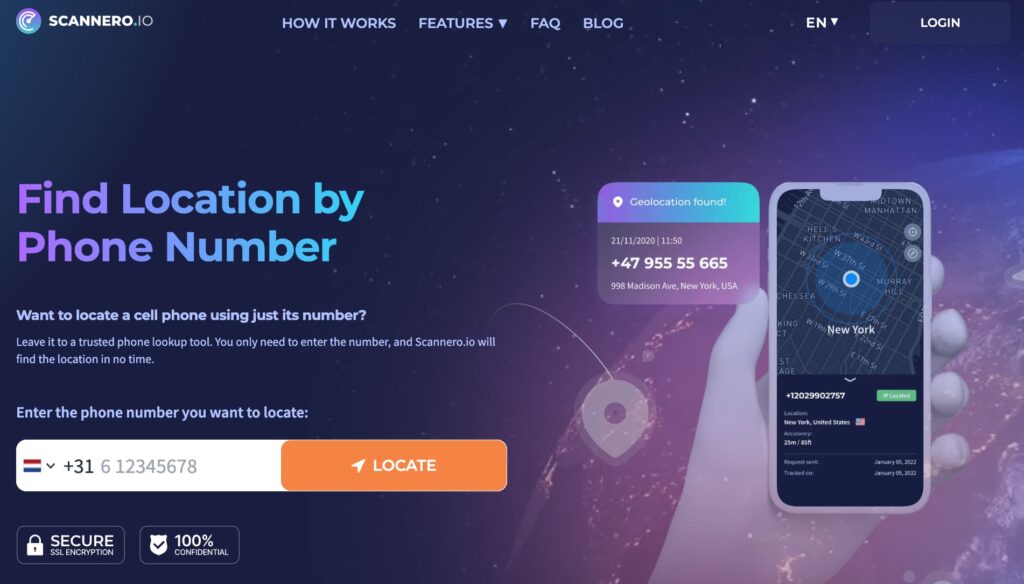
Scannero works independently of any tracking app. When you need a location check, you enter the person’s phone number and Scannero sends them an SMS with a location request link. When they tap the link, their real-time GPS coordinates appear on your dashboard map within about 2 minutes. No app installation needed on their device, and it works whether Find My, Google Maps, or Life360 is active or paused.
Here’s how to use it:
- Go to scannero.com and create an account
- Enter the phone number of the person you want to locate
- Scannero sends a discreet SMS with a location request link
- When they tap the link, their GPS location appears on your map
This fills exactly the gap that shared-app pausing creates: a direct location check that doesn’t depend on whether the other person has their location sharing enabled in any app.
Scannero vs. Find My vs. Google Maps vs. Life360
| Feature / Criteria | Scannero | Apple Find My | Google Maps | Life360 |
|---|---|---|---|---|
| Push notification when stopped | N/A | No | No | No |
| Status visible when stopped | No | Name disappears | Unavailable | “Paused” label |
| Stop with one person only | N/A | Yes | Yes | Per Circle |
| Works on iPhone and Android | Yes | iPhone only | Both | Both |
| No app needed on target device | Yes | No | No | No |
| Tracks by phone number | Yes | No | No | No |
| Works when sharing is paused | Yes | No | No | No |
Find My and Google Maps are the most passive platforms for stopping sharing — no push alerts, no visible labels. Life360 is the most transparent. Scannero sits in a different category: it’s not a persistent sharing tool, but a direct location request that works regardless of the other person’s in-app settings.
Final Thoughts
The most silent ways to stop sharing location without them knowing are the Find My app (for iPhone users) and Google Maps (for both platforms) — no push notifications sent, and your location simply becomes unavailable if they check. iMessage may show a quiet in-thread note in iOS 17 and later, but it’s not a push alert. Life360 is the least private: a “Location Sharing Paused” status label always appears on the map, even though no push notification fires.
Airplane Mode is the only method where your location stays visible rather than disappearing — it freezes at the last known position with a timestamp instead of going blank.
For anyone on the other side of this equation — a parent who’s lost visibility, or anyone who needs to know where someone is when their app sharing has gone quiet — Scannero delivers a direct GPS location check via phone number in about 2 minutes, independent of whatever the other person has set in Find My, Google Maps, or Life360.

Related posts
 May 25, 2026
 May 25, 2026
 May 25, 2026





