


Table Of Contents

How to Track a Cell Phone Number Without Them Knowing: 5 Methods
Sometimes you need to know where someone is without calling them to ask. Whether a teenager isn’t responding, a family member seems unreachable, or you’re getting calls from an unknown number, the situation is the same: you have a phone number and you need a location. This guide covers five real methods to track a cell phone number without them knowing — ranked from least to most access required.
Can You Track a Cell Phone Number Without Them Knowing?
Yes, but the method depends on what access you have. There are two categories of approaches. The first works from a phone number alone — no device access, no shared account, no app installation on their end. The second requires either a linked account or brief physical access to the device.
When your only resource is a phone number, Scannero is the only practical solution. It sends a text to the number, and when the recipient taps the link inside that message, their GPS coordinates are returned directly to your dashboard. Everything else on this list requires either shared login credentials or physical access to the phone at some point.
Track a Cell Phone Number with Scannero (No App Install)
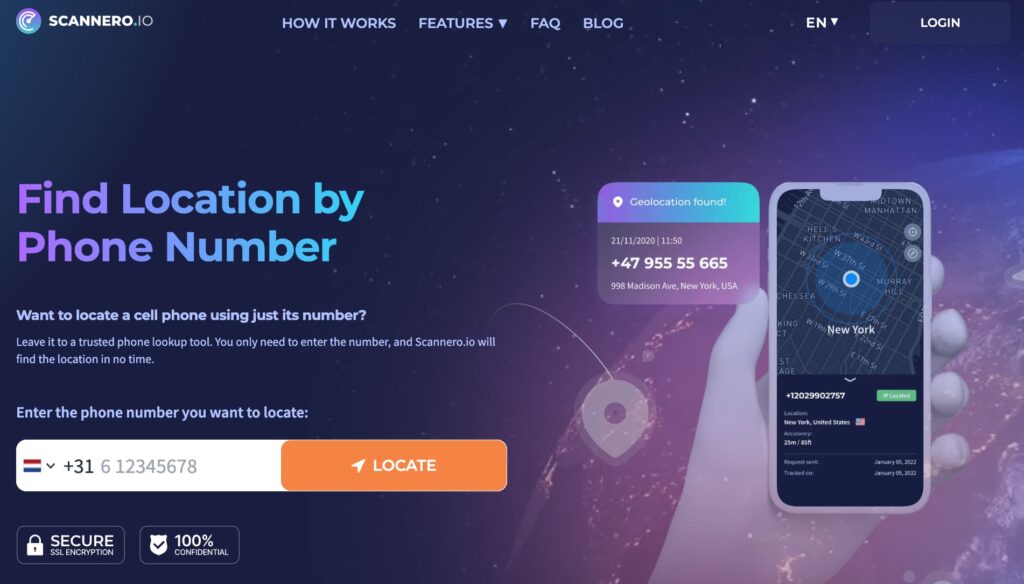
The most common obstacle people face when trying to track a cell phone without them knowing is simple: no access to the device. Every other method on this list requires either knowing someone’s iCloud password, accessing their Google account, or holding their phone for a few minutes. Scannero solves this by working from the number alone.
How Scannero Works
Scannero sends a text message containing an embedded link to any phone number — iOS or Android, any carrier. When the recipient opens the message and taps the link, their phone’s GPS reports the coordinates back to Scannero’s servers. The result appears on a map inside your dashboard and is delivered to your email. The message comes from an anonymous sender — there is no Scannero branding visible to the recipient, and nothing that indicates a location request is embedded in the text. Scannero also works on Wi-Fi-only devices, making it effective even when the target number has no active data plan.
Step-by-Step: How to Start Tracking with Scannero
- Go to scannero.com and create an account with your email address.
- Enter the target phone number in the tracking field.
- Write a custom message or select one of Scannero’s preset message templates.
- Click Send. Scannero delivers the text to that number immediately.
- When the recipient taps the link, their GPS location appears in your dashboard and is emailed to you.
Setup takes under five minutes from account creation to first send. Location results are returned within seconds of the link being tapped. Because the recipient must take an active step — tapping the link — to trigger location sharing, Scannero operates within the bounds of consent-based tracking.
Track an iPhone Without Them Knowing via iCloud

If the target device is an iPhone and you know the Apple ID and password associated with it, iCloud’s Find My feature lets you see its location without touching the phone.
- Open a browser and go to icloud.com/find, or open the Find My app on another Apple device.
- Sign in using the target device’s Apple ID credentials.
- Select the device from the list that appears.
- View its current location on the map.
This method works in real time as long as the iPhone is powered on, connected to the internet, and has Find My enabled. If Find My was turned off before you checked, you’ll see only the last known location before it went offline.
This approach is practical for parents who set up their child’s iPhone and retained the Apple ID login. It is not feasible if you don’t have the credentials, as Apple does not allow cross-account location viewing without mutual consent.
Track an Android Phone via Google Find My Device

For Android phones, Google’s Find My Device service provides real-time location when the phone is signed into a Google account you can access.
- Go to android.com/find in any browser.
- Sign in with the Google account linked to the target phone.
- Select the device from the list.
- View its current or last known location on the map.
The phone must be powered on and connected to a mobile or Wi-Fi network for the location to update in real time. If the phone is offline, Find My Device shows the last location before connectivity dropped, along with a timestamp.
This method works well within family setups where devices are tied to a shared or parent-managed Google account. It does not work if you don’t have the login — Google does not allow third-party access to device location without account credentials.
Use a Phone Tracker App
Dedicated monitoring apps offer the most comprehensive tracking, including real-time GPS, geofencing alerts, call logs, and text message access. The trade-off is setup: you need physical access to the target Android device for roughly five minutes to install the app. For iPhone, most apps work through iCloud credentials alone, requiring no install.
Once installed on Android, the app runs silently in the background. The person whose phone is being monitored sees no icon, no notification, and no visible indication that tracking is active.
Key features available through most monitoring apps:
- Real-time GPS location and movement history
- Geofencing: alerts when the device enters or leaves a defined area
- Call logs and contact details
- Text and messaging app access
- Browser history
This method is best suited for parents tracking a minor child’s device and for employers monitoring company-owned phones. Installing monitoring software on an adult’s device without their knowledge or consent is illegal in most US states.
Check Location History via Google Maps Timeline

If the target phone is linked to a Google account you can access, Google Maps Timeline records every location that phone has visited — with timestamps, addresses, and movement routes.
- Go to maps.google.com on any browser.
- Click the profile icon in the top right and select “Your Timeline.”
- Choose a date from the calendar view.
- Browse the movement history recorded for that day.
Unlike the other methods, Timeline works retroactively. You can see where the phone was at 3pm last Tuesday even if you didn’t check at the time. It builds automatically as long as location history is enabled on the Google account and the phone.
This method is purely read-only and historical. It doesn’t alert the person to any activity on the account, but it does require that you log into their Google account to view the data.
Which Method Is Right for You?
| Your Situation | Best Method |
|---|---|
| You have only the phone number — no account access, no device access | Scannero (Method 1) |
| Target is an iPhone and you know the Apple ID login | iCloud Find My (Method 2) |
| Target is an Android and you have the Google account login | Google Find My Device (Method 3) |
| You need ongoing monitoring with alerts and message access | Phone tracker app — mSpy or Eyezy (Method 4) |
| You want to see past movement without real-time tracking | Google Maps Timeline (Method 5) |
| You want to track a child’s phone without them knowing for free | iCloud or Google Find My Device, depending on device |
When you have nothing but a phone number — no shared account, no access to the device — Scannero is the only method on this list that works. Every other option assumes you already have a foot in the door through a linked account or prior physical access. Scannero closes that gap by turning the number itself into the starting point.
Comparing Phone Tracking Options: Scannero vs mSpy vs Life360
| Feature / Criteria | Scannero | mSpy | Life360 |
|---|---|---|---|
| Works from phone number only | Yes | No | No |
| No app install required on target device | Yes | No (Android) / No (iOS with iCloud) | No |
| Works on iOS and Android | Yes | Yes | Yes |
| Anonymous to recipient before link tap | Yes | Yes | No |
| Real-time GPS tracking | Yes (on link tap) | Yes (continuous) | Yes (continuous) |
| Setup under 5 minutes | Yes | No — requires device access | No — requires app download by recipient |
| Reverse phone lookup included | Yes | No | No |
| Geofencing alerts | No | Yes | Yes |
| Free tier available | No | No | Yes (limited) |
Scannero is the right tool when the goal is to track a cell phone number without them knowing and without any prior setup on their device. mSpy is the stronger option for ongoing, comprehensive monitoring once installation has been completed. Life360 is designed for consensual family tracking — all members download the app willingly, which removes the “without them knowing” element entirely.
For a reader who needs a result from a number alone, with no app install and no shared credentials, Scannero is the only option in this comparison that meets those requirements.
Is It Legal to Track a Cell Phone Without Someone Knowing?
Tracking a cell phone without the person’s knowledge is legal in three specific situations in the US:
You own the device. Employers may monitor company-owned phones under a stated policy. Parents may monitor devices they own and provide to their minor children.
The person gives active consent. With Scannero, the recipient must physically tap the link inside the text message for their location to be reported. That action constitutes consent — they chose to engage with the request.
You are a parent monitoring a minor. Most US states permit parental monitoring of children under 18 without requiring the child’s explicit consent, provided the parent owns or pays for the device.
Tracking an adult’s phone without any of the above conditions — without consent, without ownership, without a parental relationship — is a violation of the Electronic Communications Privacy Act and equivalent state laws. The legality of your situation determines which method is appropriate to use.
Start Tracking a Cell Phone Number Today
There are five real ways to track a cell phone number without them knowing: Scannero for number-only tracking, iCloud for iPhones, Google Find My Device for Android, dedicated monitoring apps for ongoing access, and Google Maps Timeline for location history. Each works best in a specific situation — and the right choice depends on what access you already have.
For anyone who has only a phone number and no route into the target device, the answer is direct. Enter the number, send the text, and let Scannero return the location the moment the link is tapped.

Related posts
 May 25, 2026
 May 25, 2026
 May 25, 2026





