


Table Of Contents

How to Turn Off Location on Snapchat: 5 Methods and What Friends See
Most people turn on Ghost Mode, assume their location is invisible, and move on. What they don’t realize is that their Bitmoji disappearing from Snap Map is itself a signal — attentive friends will notice immediately. There’s also a separate Live Location feature that Ghost Mode doesn’t touch.
Snapchat does not send a notification when you turn off location. But the visible gap on the map tells its own story. This guide covers five methods for turning off your Snapchat location, explains exactly what friends see with each one, and covers the one approach where your Bitmoji actually stays put.
How Snapchat Location Sharing Works

Snap Map shares your location with friends based on one of two settings: “While Using the App” (default) updates your position each time you open Snapchat, and “Always” sends continuous background updates even when the app is closed.
After you stop using the app, your location remains on the map for up to 8 hours. After that, your Bitmoji disappears naturally — no action required. This matters because a frozen or absent Bitmoji doesn’t always mean Ghost Mode is on; it can simply mean someone hasn’t opened Snapchat recently.
When friends tap your Bitmoji on the map, they see a timestamp of when your location was last updated. This also reflects the last time you had the app open.
Method 1: Enable Ghost Mode (Built-in — Bitmoji Disappears)
Ghost Mode is Snapchat’s built-in location-off toggle. When active, Snapchat stops collecting and broadcasting your position entirely. Your Bitmoji vanishes from the map for everyone in your friends list.
You can access Ghost Mode two ways:
Via Snap Map:
- Open Snapchat and swipe left or tap the map icon to open Snap Map
- Tap the gear icon in the top-right corner
- Toggle Ghost Mode on
- Choose a duration: 3 hours, 24 hours, or Until Turned Off
Via Profile Settings:
- Tap your profile icon in the top-left corner
- Tap the gear icon (Settings)
- Scroll down to Privacy Controls → See My Location
- Toggle Ghost Mode on and select a duration
The “3 hours” option works well for a short outing or a meeting. “Until Turned Off” keeps Ghost Mode active indefinitely — it won’t re-enable automatically when the timer lapses.
What friends see: your Bitmoji disappears from Snap Map entirely. There is no notification, but the absence is visible to anyone who looks for you on the map.
How to Also Turn Off Live Location
Ghost Mode does not disable Snapchat’s separate Live Location feature. If you have Live Location sharing active with specific friends, they can still see your real-time position even after Ghost Mode is turned on. Many users miss this entirely.
To disable Live Location:
- Open Snap Map and tap the gear icon
- Scroll down to “My Live Location”
- Toggle on “Hide my live location” to stop all Live Location sharing
Or, to stop sharing with one specific person:
- In the same settings panel, find their name under Live Location
- Tap Stop next to their name
If you’re still appearing on someone’s map after enabling Ghost Mode, Live Location is almost certainly still active.
Method 2: Customize Who Can See Your Location (Partial Privacy)
Instead of going fully invisible, you can hide your location from specific people while remaining visible to others. This approach leaves your Bitmoji on the map — just not for everyone.
- Open Snap Map and tap the gear icon
- Make sure Ghost Mode is off
- Under “Who Can See My Location,” choose one of three options:
| Option | What it does |
|---|---|
| My Friends | All friends see your location (default) |
| My Friends, Except… | All friends see you except a named list |
| Only These Friends | Only named friends can see your location |
What friends see: anyone excluded from your sharing list sees no Bitmoji. Friends who are included see your normal live location. This is the most surgical approach — useful when you want to hide from specific people without signaling to everyone that you’ve gone private.
Method 3: Revoke Location Permission in Device Settings (Bitmoji Disappears)
Removing Snapchat’s location access at the OS level stops the app from reading your GPS entirely. This is more permanent than Ghost Mode and also disables location-based filters, stickers, and Snap Map content for you.
On iPhone:
- Open Settings
- Scroll down and tap Snapchat
- Tap Location
- Select Never to fully revoke, or While Using the App to limit background tracking
Optional: on iOS, you can toggle off Precise Location without revoking access entirely. This shows Snapchat an approximate area rather than your exact address. Your Bitmoji may remain on the map with reduced accuracy.
On Android:
- Long-press the Snapchat app icon and tap App Info
- Tap Permissions → Location
- Select Don’t Allow to revoke completely, or “Allow only while using the app” to limit it
What friends see: your Bitmoji disappears from Snap Map — the same visual outcome as Ghost Mode. The difference is that this also affects every other location feature inside Snapchat, including filters and nearby content.
Method 4: Enable Airplane Mode (Most Discreet — Bitmoji Stays)
This is the only method where your Bitmoji does not disappear from Snap Map. Airplane Mode cuts all network connections. Snapchat can’t send a live update, so it displays your last known location to friends instead of going blank. To anyone watching, your pin appears frozen at the place you were when Airplane Mode was activated.
On iPhone:
- Swipe down from the top-right corner to open Control Center
- Tap the airplane icon — it turns orange when active
On Android:
- Swipe down from the top of the screen
- Tap the Airplane Mode tile
What friends see: your Bitmoji stays on the map at the last known position. The timestamp freezes. They have no obvious indicator that you’ve gone offline — it can look like you simply haven’t moved.
The trade-off is connectivity: while Airplane Mode is on, you receive no calls, texts, or data. This method works well for short windows but isn’t a practical long-term solution.
Method 5: Use a Fake GPS / Location Spoofer (Location Stays Active — Fake Position)
GPS spoofing keeps your Bitmoji active and moving on the map — it just points to a fake address you choose. This is the highest-stealth option: no Bitmoji disappearance, no frozen timestamp, no visual clues.
General flow:
- Install a location spoofer app on your device (various options available for iOS via desktop tool, Android via developer mode)
- Open the app and choose a fake address on the map
- Activate the virtual location — it applies across all apps including Snapchat
- Open Snapchat — your Bitmoji will appear at the fake location
What friends see: your Bitmoji at a static fake location, updating normally. Nothing looks out of place unless the fake location is geographically implausible.
The trade-off: location spoofing affects every app simultaneously — maps, ride-sharing, and food delivery will all read the false coordinates until you deactivate the tool.
What Your Friends See With Each Method
| Method | Bitmoji Visible? | What Friends See | Can They Tell? |
|---|---|---|---|
| Ghost Mode | No | Bitmoji disappears from map | Yes — absence is visible |
| Customize who sees location | Yes (for included friends) | Normal location for included; absent for excluded | Excluded friends can tell |
| Revoke device permissions | No | Bitmoji disappears from map | Yes — same as Ghost Mode |
| Airplane Mode | Yes | Frozen at last known location | Low — looks like inactivity |
| GPS Spoofing | Yes (fake location) | Active Bitmoji at fake address | Very Low |
Airplane Mode and GPS spoofing are the two methods that leave no obvious trace. Everything else causes the Bitmoji to disappear, which observant friends will notice.
Does Snapchat Notify When You Turn Off Location?
Snapchat sends no notification of any kind when you enable Ghost Mode, revoke location permissions, or switch on Airplane Mode. There is no push alert, no in-app message, and no badge on your profile.
The only visible signal is the one discussed above: your Bitmoji disappearing from friends’ Snap Maps.
One point of confusion worth clarifying: Snapchat+ subscribers can see a list of who has viewed their location on Snap Map. This is about viewing someone’s location, not about someone turning theirs off. No Snapchat feature currently notifies a user when someone else disables location sharing with them. The two things — viewing and disabling — are separate.
When Someone’s Snap Map Goes Dark: What Parents Should Know
When a teenager enables Ghost Mode or revokes Snapchat’s location access, their Bitmoji disappears. For parents who use Snap Map as a casual location check, this leaves a complete blind spot with no fallback inside the app.
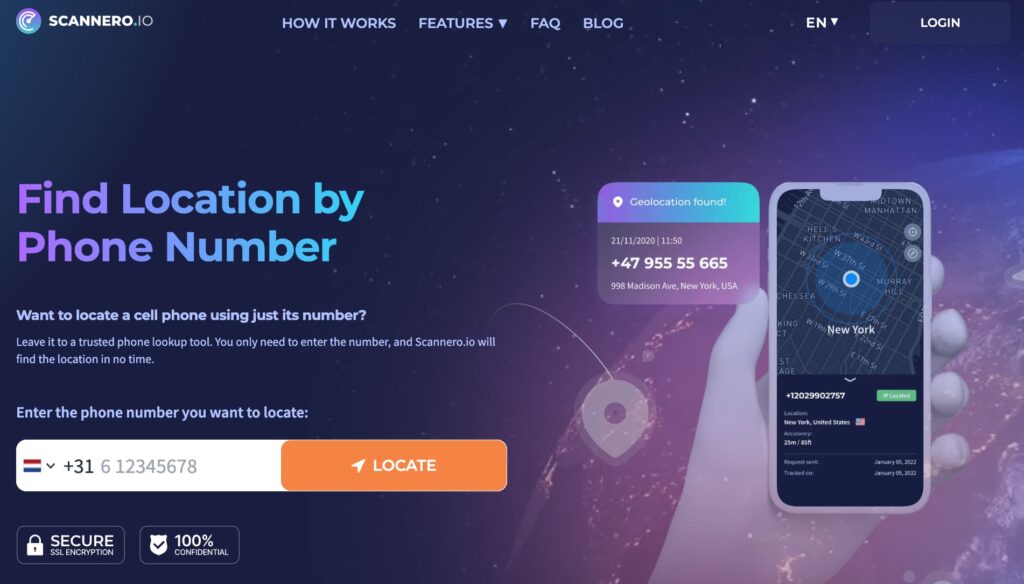
Scannero fills that gap. Instead of relying on the teen’s in-app settings, Scannero sends a location request directly to their phone number via SMS. When they tap the link in the message, their real-time GPS coordinates appear on your Scannero dashboard within about 2 minutes. No app install is needed on their device, and it works on any phone — iPhone, Android, or a basic SMS-capable device.
Here’s how to use it:
- Create an account at scannero.com
- Enter the phone number of the person you want to locate
- Scannero sends a discreet SMS with a location request link
- When they tap the link, their real-time GPS appears on your map
Scannero works independently of Snapchat. It doesn’t matter whether Ghost Mode is on, whether the app is installed, or whether location permissions have been revoked — the request goes directly to the phone number. For parents who need a location check when the map goes dark, it returns a result in under 3 minutes.
Scannero vs. Snap Map vs. Life360
| Feature / Criteria | Scannero | Snap Map | Life360 |
|---|---|---|---|
| Works when Ghost Mode is on | Yes | No | No |
| Requires target app to be active | No | Yes | Yes |
| Tracks by phone number alone | Yes | No | No |
| No app install on target device | Yes | No | No |
| Works across iPhone and Android | Yes | iPhone-focused | Both |
| Shows real GPS location | Yes | Yes (when shared) | Yes (when shared) |
| Consent-based | Yes (link tap) | Mutual opt-in | App install required |
Snap Map works well for families where everyone is voluntarily sharing location. The moment someone enables Ghost Mode, it stops working entirely. Scannero is the right tool for that gap — a direct location check that doesn’t depend on the other person’s app settings or in-app privacy choices.
Final Thoughts
For most users, Ghost Mode is the right choice — it’s built into Snapchat, takes three taps to activate, and lets you set a timer so it disables itself automatically. If you need to hide your location without your Bitmoji visibly disappearing, Airplane Mode is the only built-in option that keeps the pin on the map.
When a family member’s Snap Map location goes dark and you need to confirm where they are, Scannero provides a direct path using just their phone number. Send the request, they tap the link, and their GPS coordinates appear in about 2 minutes — regardless of what their Snapchat settings show.

Related posts
 May 25, 2026
 May 25, 2026
 May 25, 2026





