


Table Of Contents

Why Is Life360 Not Updating Location? 8 Fixes That Actually Work
Before you panic, take a breath. When Life360 stops updating someone’s location, the cause is almost never an emergency — it’s nearly always a background permission setting or a battery mode on the tracked phone that silently blocks the app from running. Most issues resolve in under five minutes once you identify which setting is off.
Life360 updates location using GPS, Wi-Fi, and cellular data. For continuous updates, the app needs “Always” location access and permission to run in the background. When either of those is restricted — by the operating system, a battery saver, or a manual setting — the pin freezes and you see a stale timestamp.
The key point: most fixes need to be applied on the phone that isn’t sending updates, not on the phone where you’re viewing the map. This guide covers 8 causes with exact steps for iPhone and Android.
Why Life360 Is Not Updating Location: 8 Causes
| Cause | What You See on the Map | Which Device to Fix |
|---|---|---|
| Location permission set to “While Using” | Timestamp stops updating when app is closed | Tracked person’s phone |
| Battery Saver / Low Power Mode enabled | Location frozen, no updates for hours | Tracked person’s phone |
| Background App Refresh disabled (iPhone) | Intermittent or no updates | Tracked person’s phone |
| Background data restricted (Android) | No updates away from Wi-Fi | Tracked person’s phone |
| Poor or no network connection | Delayed or frozen timestamp | Tracked person’s phone |
| App glitch or needs restart | Sudden freeze on known-good settings | Both phones |
| Outdated app version | Random update failures | Both phones |
| Location sharing intentionally paused | “Location sharing paused” label on pin | Tracked person’s choice |
Fix 1: Location Permission Set to “While Using” Instead of “Always”

This is the most common cause of Life360 not updating location. If the permission is set to “While Using the App,” Life360 stops sending location data the moment the app is closed or the screen locks. You need “Always” enabled for continuous background tracking.
On iPhone:
- Open Settings and scroll down to Life360
- Tap Location
- Select Always
- Make sure the Precise Location toggle is switched ON (green)
On Android:
- Open Settings → Apps (or Applications)
- Find and tap Life360
- Tap Permissions → Location
- Select Allow all the time
After changing this setting, Life360 should resume continuous updates within a few minutes.
Fix 2: Battery Saver or Low Power Mode Is Blocking Background Updates
Battery-saving features are the second most common reason Life360 won’t update location. They are designed to freeze background apps — and Life360 is treated exactly like any other background app.
On iPhone — Disable Low Power Mode:
- Go to Settings → Battery
- Toggle off Low Power Mode
When Low Power Mode is on, the battery icon turns yellow. iOS provides no way to exempt individual apps — Low Power Mode cuts background refresh for everything, including Life360. If reliable tracking matters, this mode needs to stay off on the tracked device.
On standard Android — Set Life360 to Unrestricted:
- Go to Settings → Apps → Life360
- Tap Battery (or “App battery usage”)
- Select Unrestricted
On Samsung specifically (extra step required):
- Go to Settings → Battery and device care → Battery
- Tap Background usage limits
- Check the Sleeping apps and Deep sleeping apps lists
- If Life360 appears on either list, tap and hold it, then tap Remove
Samsung’s “Sleeping apps” and “Deep sleeping apps” features are an additional layer of battery management that many guides miss. An app moved to the deep sleeping list can become completely inactive between manual opens, which stops all location updates.
Fix 3: Background App Refresh Is Disabled (iPhone)
Even with “Always” location permission, an iPhone won’t send Life360 updates if Background App Refresh is turned off. This setting is separate from location access and is easy to miss.
- Open Settings → General → Background App Refresh
- Ensure Background App Refresh is enabled at the top (set to Wi-Fi, or Wi-Fi & Cellular Data)
- Scroll down to find Life360 and confirm its individual toggle is ON
- Also check: Settings → scroll down to Life360 → confirm the Background App Refresh toggle is ON
If Background App Refresh is disabled system-wide, no apps — including Life360 — can update in the background regardless of their location settings.
Fix 4: Background Data Is Restricted (Android)
Android restricts how apps use data in the background, which blocks Life360 from transmitting location updates over mobile networks.
- Go to Settings → Apps → Life360
- Tap Data usage (or Mobile data & Wi-Fi)
- Enable Background data — this allows Life360 to send updates when running in the background
- If Data Saver is active on the phone, go to Settings → Network → Data Saver and add Life360 to the “Unrestricted apps” list, or disable Data Saver entirely
Without background data access, Life360 can only send an update when the app is actively open on screen.
Fix 5: Poor or No Network Connection
Life360 queues location updates and transmits them when connectivity resumes. A phone in a dead zone, underground, or on a congested network will show a stale timestamp — but the pin is still at the last successfully transmitted location.
- Verify the tracked phone is connected to Wi-Fi or has cellular data enabled
- Toggle airplane mode on for 10 seconds, then off — this resets all wireless connections
- Try moving to an area with stronger signal
A timestamp reading “Updated 2 hours ago” in a location that makes sense (home, work, school) often means the phone simply hasn’t been in an area with reliable connectivity, not that something is wrong.
Fix 6: Force-Stop and Restart the App
A temporary glitch in the Life360 app can stall communication with the server even when all settings are correct. A force-restart fixes this without changing any permissions.
On iPhone:
- Swipe up from the bottom edge of the screen (or double-press the Home button on older models)
- Find the Life360 app card and swipe it upward to close it
- Reopen Life360
On Android:
- Go to Settings → Apps → Life360
- Tap Force Stop and confirm
- Reopen Life360
If force-stopping doesn’t help, restart the full phone. A complete reboot clears the RAM and kills any background processes that may be interfering with Life360’s network calls. Apply this on the tracked person’s phone, not just the viewer’s.
Fix 7: Update or Reinstall the App
Outdated versions of Life360 can contain bugs that prevent location updates, especially after iOS or Android system updates that change how background permissions work.
- Open the App Store (iPhone) or Google Play Store (Android)
- Search for Life360
- Tap Update if one is available
If updating doesn’t resolve the issue:
- Uninstall Life360 from the tracked phone
- Reinstall it from the App Store or Google Play
- Log back in with the same account credentials
Reinstalling does not delete the account, Circle membership, or location history — it simply replaces the app files.
Fix 8: Check If Location Sharing Was Intentionally Paused
Not every “stuck location” is a technical glitch. Life360 users can deliberately pause their location sharing at any time, and when they do, the map shows a specific label — not a timestamp freeze.
What you see when location is intentionally paused:
- “Location sharing paused” appears below the person’s name on their pin
- “Location permissions off” means they revoked the app’s location access in device settings
- “No location found” may appear if the account has stopped sharing entirely
- Their Bitmoji icon may disappear from the map
What you see with a technical failure:
- A stale timestamp like “Last seen 3 hours ago” with the pin still at a known location
- No special label — the pin is present but frozen
- Inconsistent updates (works sometimes, not always)
If you see the “Location sharing paused” label, the person has actively chosen to hide their location — this is different from a settings issue on their phone. To re-enable sharing from your own device: tap Settings → Privacy Controls → See My Location → disable Ghost Mode and select who can see your location.
How to know if someone paused their location on Life360: the paused label is the definitive indicator. A frozen timestamp without that label almost always points to a technical cause.
What Life360 Shows When Location Is Stale
| What You See | Likely Cause | What to Do |
|---|---|---|
| “Last updated X hours ago” (no label) | Network issue, battery saver, or permissions | Apply Fixes 1–6 on tracked phone |
| “Location sharing paused” | User enabled Ghost Mode or paused sharing | Intentional — ask them to re-enable |
| “Location permissions off” | App lost location access in device settings | Apply Fix 1 on tracked phone |
| “No location found” | App not installed, account issue, or no network | Check app is installed and logged in |
| Pin frozen at one address for days | Battery optimization or background restrictions | Apply Fixes 2–4 on tracked phone |
| Pin accurate when app is open, stale when closed | “While Using” permission (not “Always”) | Apply Fix 1 on tracked phone |
Life360 Not Updating Location for One Person Specifically
When the issue affects only one Circle member, the problem is always on that specific device — not the app or your network. The other members updating correctly confirms this.
Fastest checklist for the affected person’s phone:
- Check location permission — must be Always (iPhone) or Allow all the time (Android) per Fix 1
- Disable battery saver — Low Power Mode on iPhone or battery optimization on Android per Fix 2
- Force-stop the app and reopen it per Fix 6
- Ask them to restart their phone
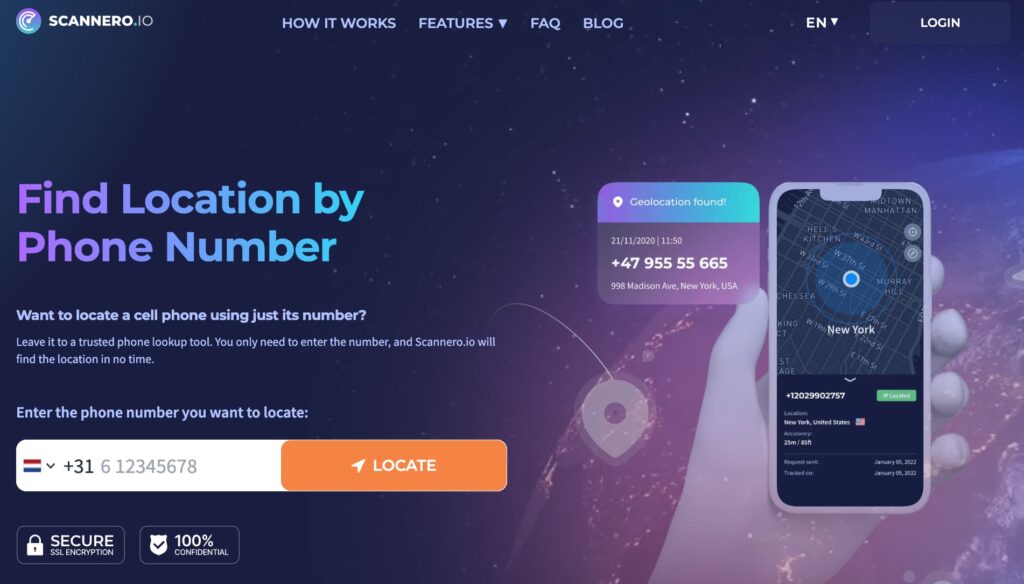
If they’re unavailable or the issue persists despite all fixes, Scannero provides an immediate location check without depending on their Life360 settings at all. When someone needs to find where a family member is right now and Life360 keeps failing, Scannero sends a location request directly to the phone number. The person receives a standard SMS with a link — when they tap it, their real-time GPS appears on your map in about 2 minutes.
Here’s how to use it:
- Go to scannero.com and create an account
- Enter the phone number of the person whose location you need
- Scannero sends a discreet SMS with a location request link
- When they tap the link, their GPS location appears on your dashboard
No app installation needed on their device, and it works whether or not Life360 is functioning correctly on their phone.
Scannero vs. Life360: When One Outperforms the Other
| Feature / Criteria | Scannero | Life360 |
|---|---|---|
| Works when background permissions are wrong | Yes | No |
| Works when battery saver is blocking the app | Yes | No |
| Requires specific app settings to function | No | Yes |
| Tracks by phone number alone | Yes | No |
| No app install needed on target device | Yes | No |
| Continuous passive tracking | No (request-based) | Yes (when configured) |
| Real-time on-demand location check | Yes | Only if settings are correct |
| Setup time | Under 2 minutes | 10+ minutes of settings |
Life360 is the right tool for continuous family tracking when every phone is correctly configured. Scannero is the right tool when you need a location now and can’t wait for settings to be fixed — or when Life360 keeps failing on one person’s device despite repeated troubleshooting.
Final Thoughts
When Life360 is not updating location, start with Fix 1 and Fix 2 on the tracked person’s device. Setting location permission to “Always” and disabling battery saver solves the problem in the vast majority of cases. If the map shows “Location sharing paused,” that’s a deliberate choice — not a technical error. For Samsung users, check the Deep sleeping apps list specifically — it catches Life360 silently.
When Life360 keeps failing regardless of settings, Scannero delivers a location in about 2 minutes using just a phone number — independent of any app configuration on the other person’s device.

Related posts
 May 25, 2026
 May 25, 2026
 May 25, 2026





